FR EN

13. sipPROT

Estimated reading: 11 minutes

Introduction

Depending on the configuration you are using, sipPROT can be installed in two possible locations:

  • PBXware – If you are using a standalone PBXware installation on dedicated hardware.
  • SERVERware host – If you are using PBXware as a VPS in a SERVERware virtual environment, sipPROT must be installed on all SERVERware hosts.

Brute-force intrusion attempts are quite common, and unprotected VoIP PBX systems are vulnerable to this type of attack. The most common consequences of this type of attack can be the following:

  • unavailability and unavailability of the VOIP service
  • Risk of password theft (SIP registration)

This type of attack on unprotected systems can lead directly to financial losses. To avoid this situation, we have developed the sipPROT module for PBXware and SERVERware. sipPROT is a protection against brute-force SIP attacks originating from the network.

How sipPROT works: 

After detecting an attack, sipPROT updates the firewall rules and blocks the IP addresses from which the attack is detected for a specific period. 

Unlike other similar solutions, sipPROT works with live SIP traffic and blocks attacks more effectively than others.

Configure sipPROT

Under sipPROT > General, you will find the configuration options for sipPROT.
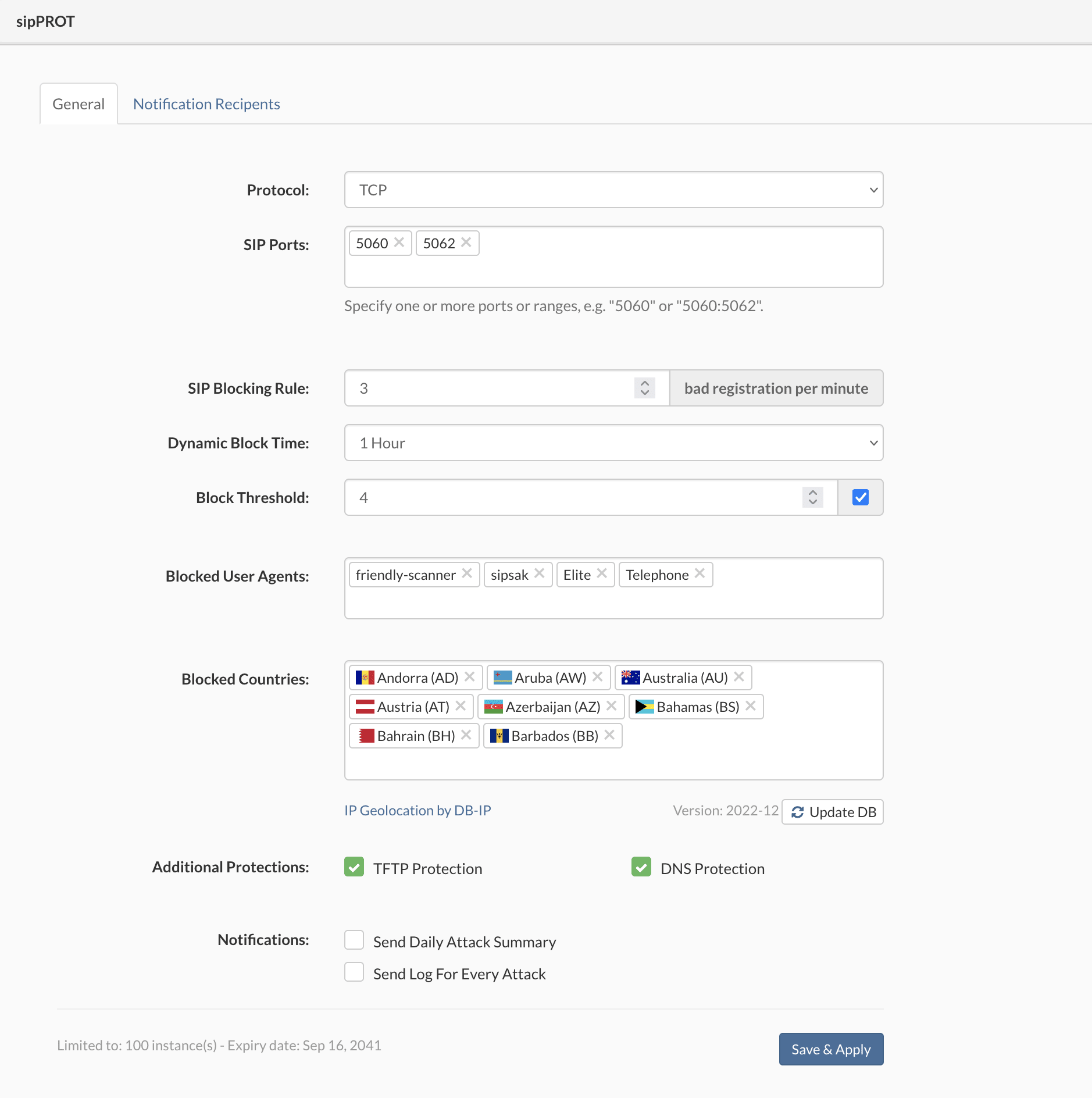
FieldDescription
ProtocolsSpecify the protocols to monitor for TCP, UDP or both attacks.
SIP portsSpecify one or more ports or port ranges, for example 5060 or 5060:5062.
SIP blocking ruleSpecify the maximum number of unauthorized registration attempts per minute before blocking the attacker's IP address for the selected duration.
Dynamic blocking timeSelect how long the IP addresses will remain blocked after successfully preventing the attack.
Blocking thresholdThe block threshold defines how many times an IP address will be dynamically blocked before being permanently blocked by adding it to the restrictions list. The acceptable range is (1 to 20).
Blocked user agentsSpecify the User Agent/scanner for sipPROT to match and block incoming traffic. The scanners setting contains a comma-separated list of available SIP scanners (user agents) immediately stopped if they are detected. IMPORTANT: Try to keep the scanners list as short as possible, as it could affect the overall system performance if the list is too long.
Blocked countriesSelect the countries from which to block incoming traffic. sipPROT will block the entire set of addresses belonging to the selected countries. The list of countries updates automatically on SERVERware hosts. There is also a button for manual updates of the GEO-IP database.
Additional protectionsThe TFTP option allows you to protect your server against TFTP brute-force attacks using a rate limit. The default rate limit is 10/minute, allowing a maximum of 100 requests in a burst. The DNS function is a protection against vulnerabilities for older systems that could be affected by a memory buffer overflow via glibc stack overflow in the getaddrinfo() security flaw, also known as CVE-2015-7547. It is enabled by default. If you do not know what this function is for, you should under no circumstances change this option.
Notifications– Sending a daily summary of attacks will send notifications to the selected recipients if this option is checked. – Sending a log for each attack will send notifications for each attack (Beware of frequent logs). The default value is 1 per hour, which means a message will be sent every hour in the event of a SIP attack. SERVERware/PBXware must have an active SMTP account set for the notifications to work.
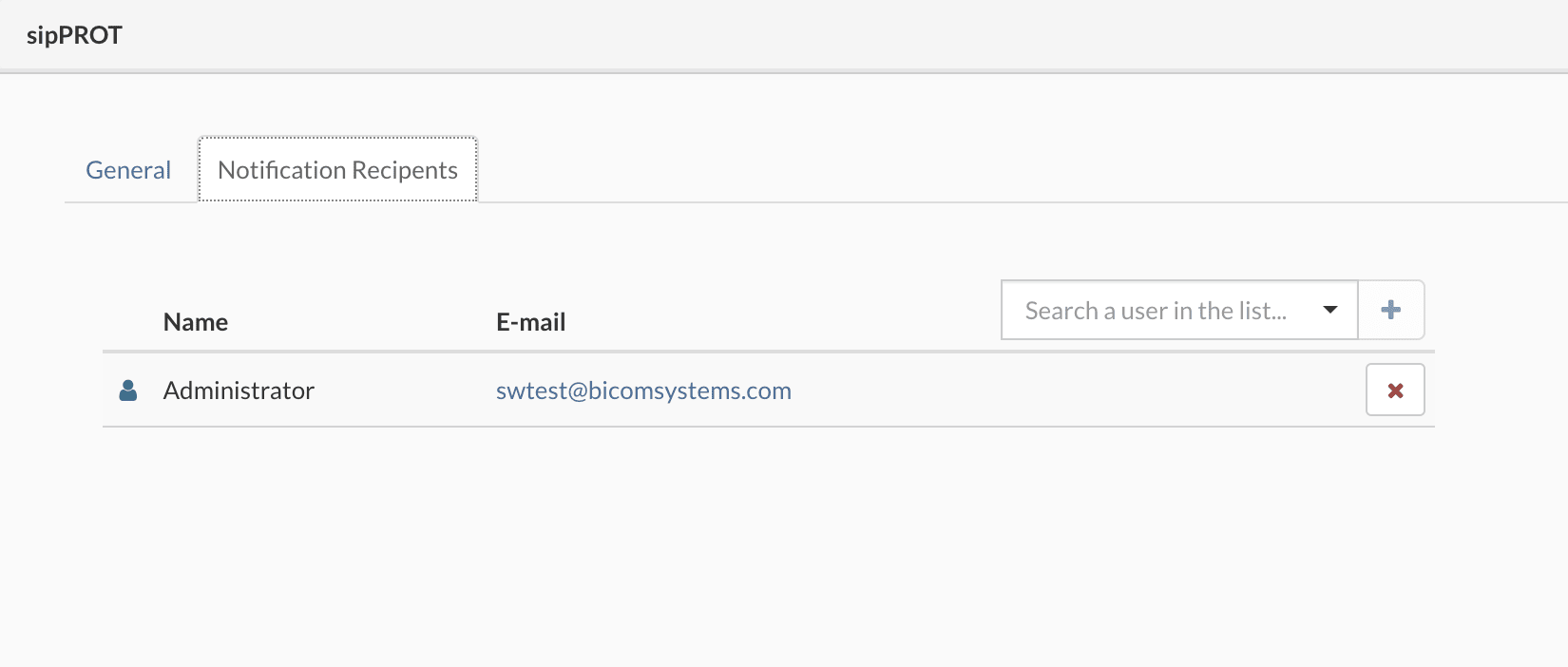
Notification recipientsTo update the notification recipients list, select the Notification Recipients tab in the General menu, select or search for a user in the list, and click the Add button. To remove a notification recipient from the list, click the Remove button on the same row. A confirmation dialog box appears. Click Yes to remove the notification recipient.

Whitelist

The whitelist is the list of IP addresses allowed to continuously access the system; this list is populated manually via a form or by uploading a CSV file.
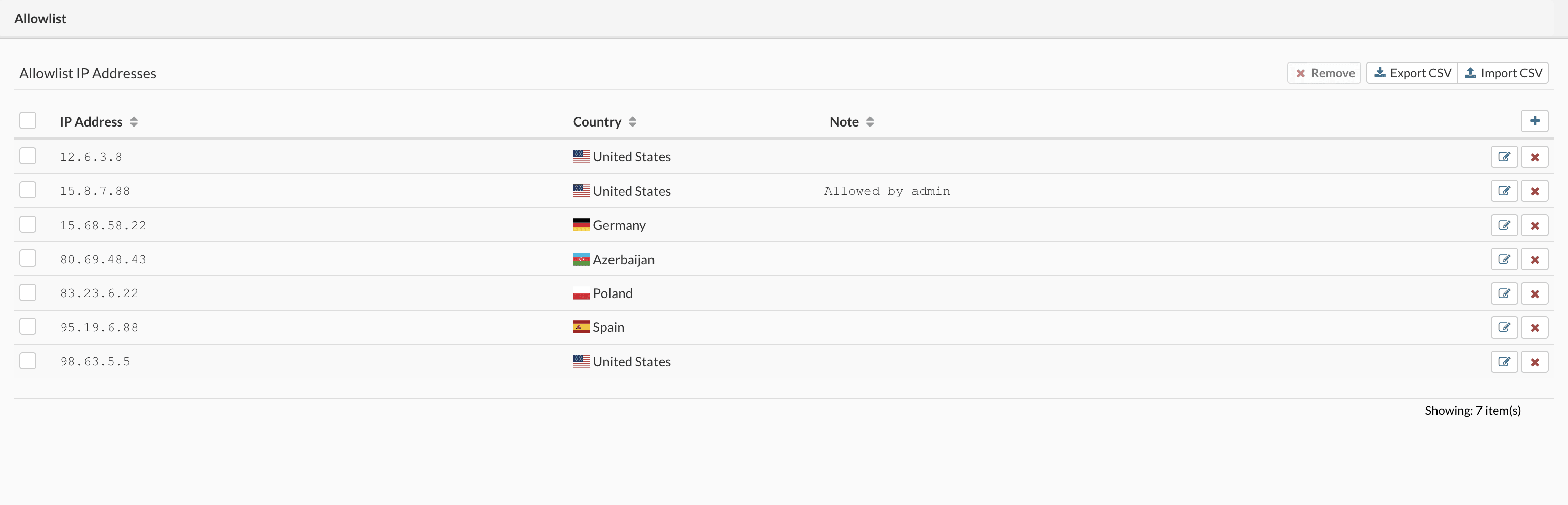
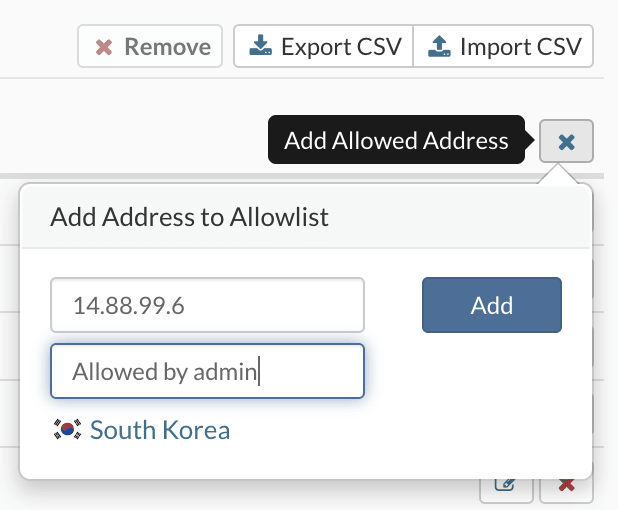
To add an IP address to the lists, select the Whitelist IP Addresses tab, press the button + enter the network or IP address, enter a note (not required) and click the button Add.
To add multiple IP addresses to the whitelist, there is a CSV import option in the upper right corner. Select the CSV file containing the list of IP addresses you want to add to the whitelist and click the button Download

There is also an option to export all whitelist IP addresses to a CSV file
Removing a network or an IP address from the list can be performed in two ways. First, there is an option to remove one or several IP addresses by selecting one or several IP addresses, then clicking the button Delete

And there is another option to remove all IP addresses from the list by checking the box Select all, then by clicking the button Delete A confirmation dialog box appears. Click Yes to delete the network or IP address. Changes made to the lists are applied automatically.

Block list

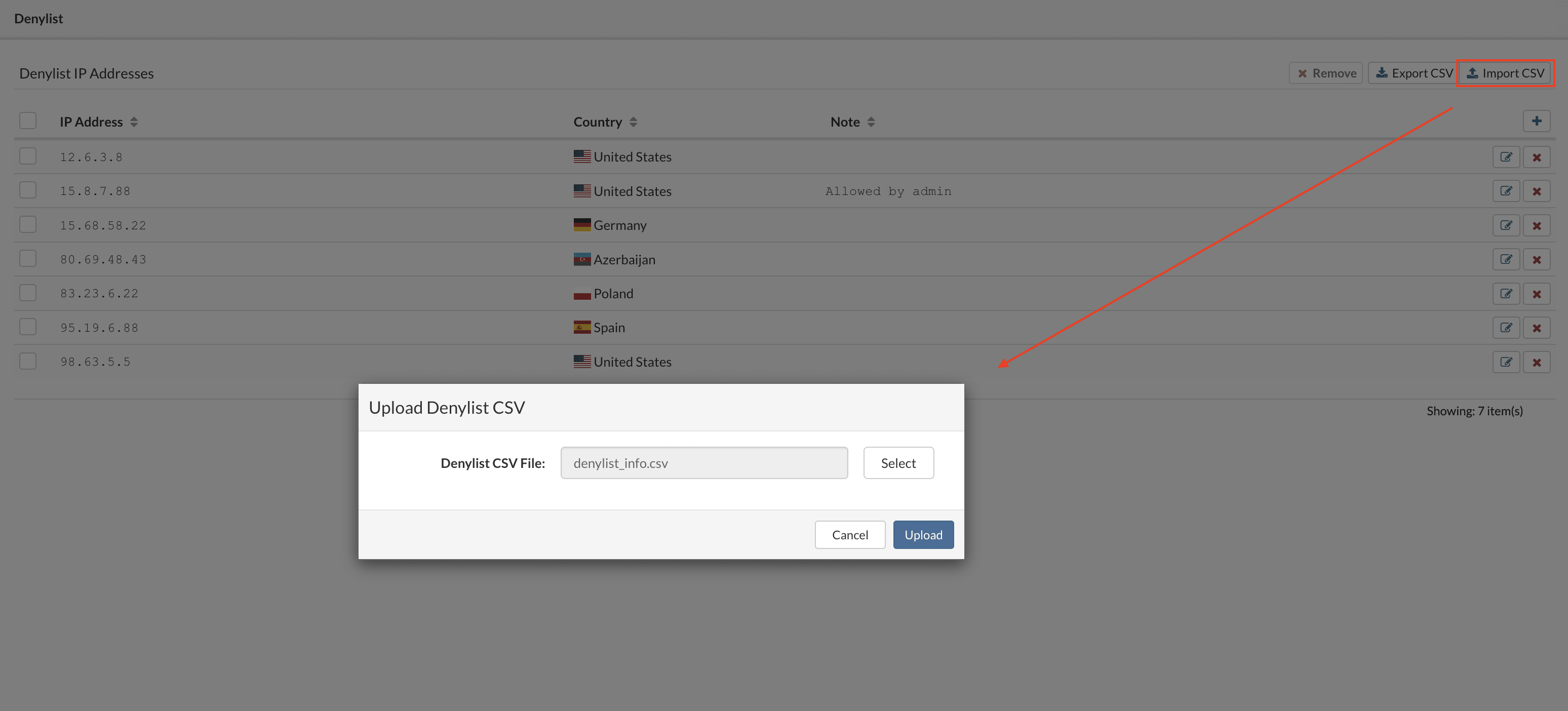
The restriction list is the list of IP addresses with restricted access to the system; this list is populated manually via a form or by uploading a CSV file.
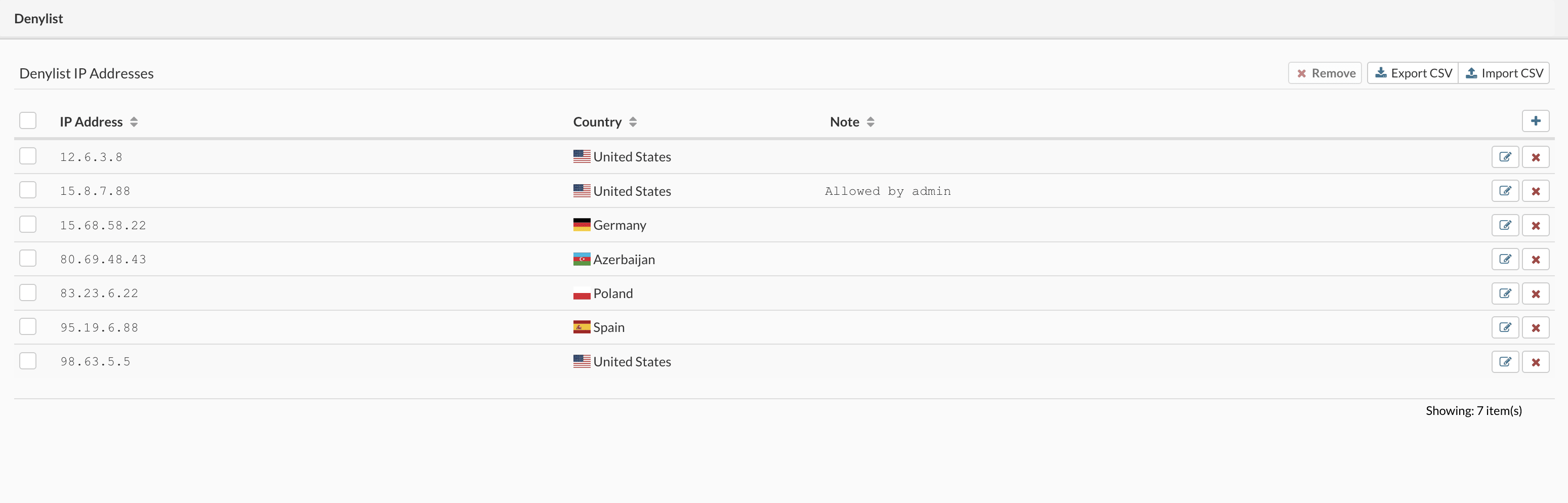
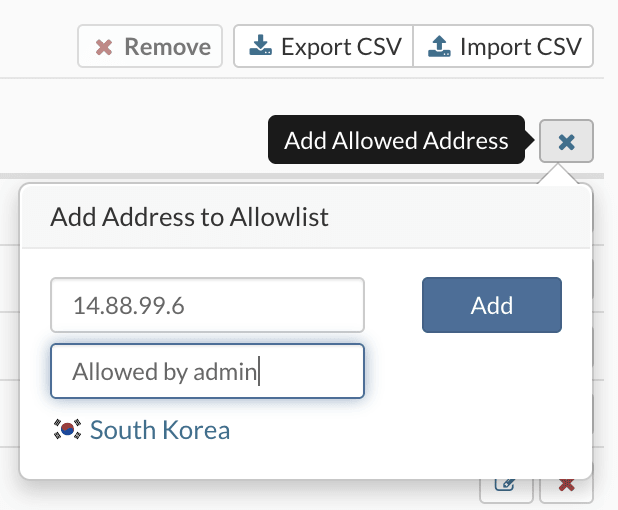
To add an IP address to the list, select the tab Whitelisted IP addresses, press the button + to enter the network or IP address, add a note (optional), and click the button Add.
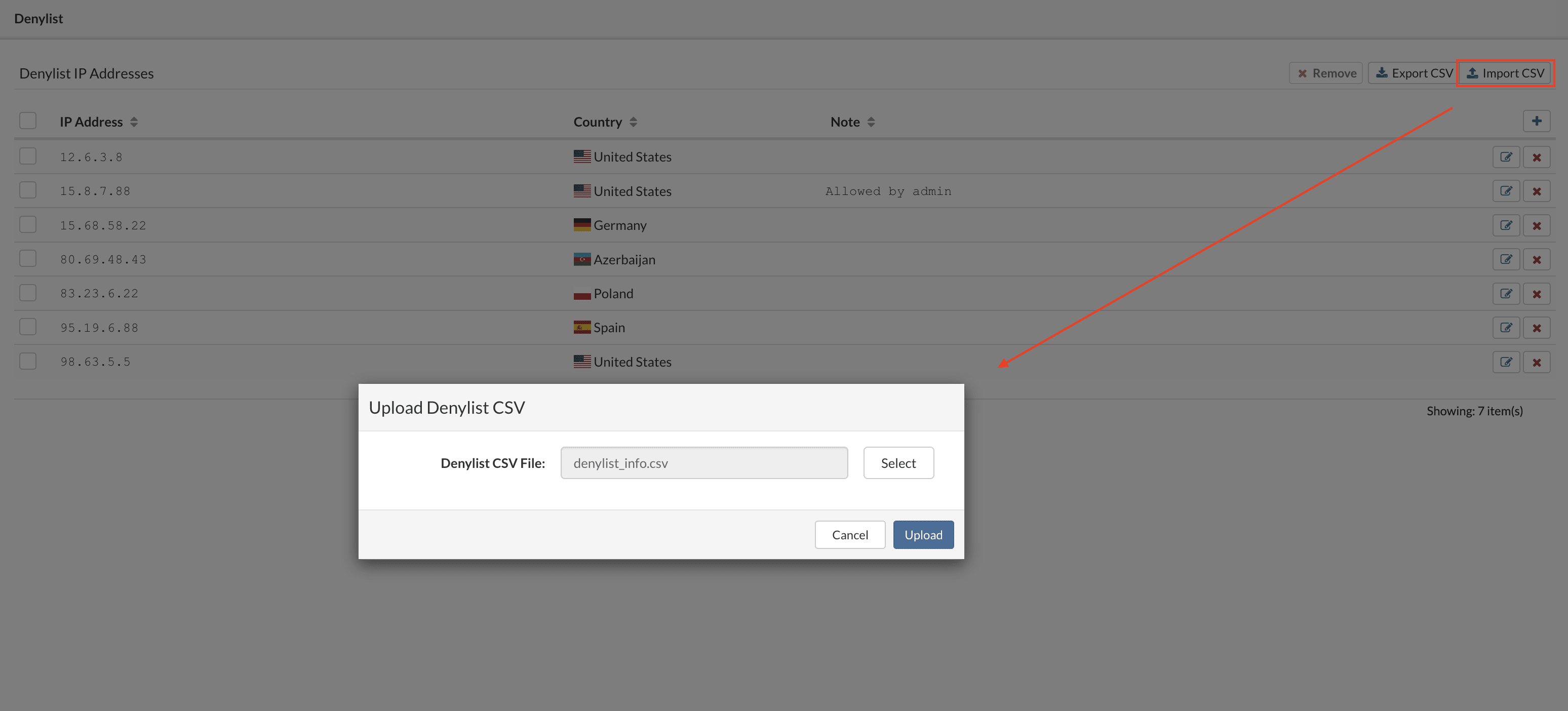
To add multiple IP addresses to the restriction list, you have the option to import a CSV file at the top right. Select the CSV file containing the list of IP addresses you want to add to the restriction list and click the button Download

There is also an option to export all IP addresses from the restrictions list to a CSV file.
Removing a network or an IP address from the list can be done in two ways. First, you have the option to remove one or several IP addresses by selecting one or several IP addresses, then clicking the button Delete

Then, there is another option to remove all IP addresses from the list by checking the box Select all then by clicking the button Delete. A confirmation dialog appears. Click on Yes to delete the network or IP address. Changes made to the lists are applied automatically.

Dynamic block list 

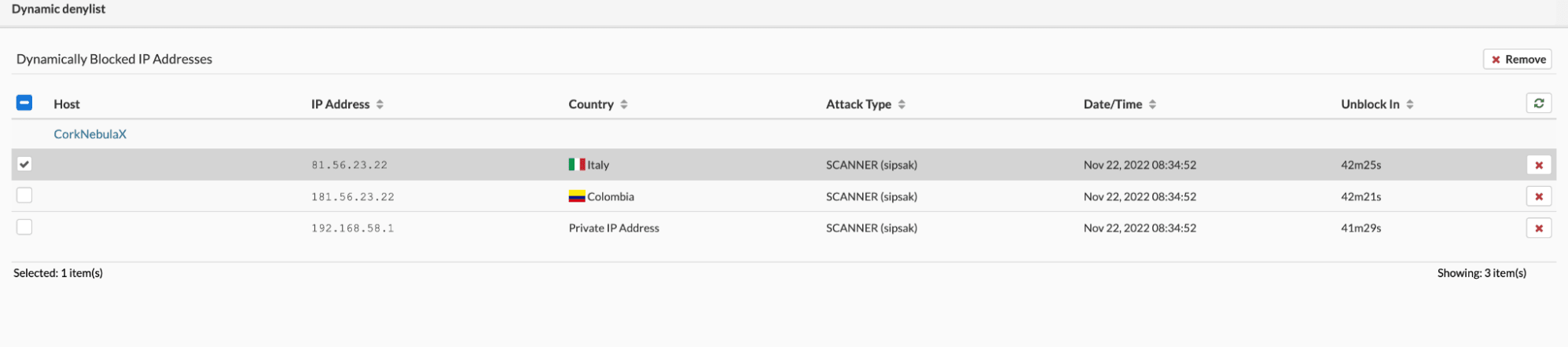
From the list of blocked addresses in the sipPROT > Dynamic Blocklist menu, you can manually unblock an IP address or wait for the block to be automatically removed after a certain time.

To make it easier to manage IP addresses blocked by sipPROT and for inspection/debugging, sipPROT's dynamic restriction list displays the exact user agent (scanner) and country of origin of each successfully stopped attack.
SipPROT CLI

The new updated version of sipPROT comes with updated CLI commands and outputs. CLI auto-completion is added for sipPROT commands.

# sipprot --help # Usage: sipprot [status|report|version|check] # status: prints number of IPs per list --all prints allow, deny, and dynamic deny lists --allow prints allow list --deny prints deny list --dynamic prints dynamic deny list # report: prints out daily attack report # version: prints out sipPROT version # check: checks if the provided IP is in any of the following: allowlist, denylist, dynamic denylist example: sipprot check 192.168.0.1 

In order to start, stop or check the status of the sipPROT daemon, use the following command 

/etc/init.d/sipprotd [start|stop|status]

To manually start sipPROT, use the following command:

/etc/init.d/sipprotd start 

sipPROT will be automatically started at system restart. After sipPROT starts, the configuration variable will be loaded from the configuration file. Here is the location of the configuration file:

/home/sipprot.conf

At startup, sipPROT will also read the IP addresses from the Allow and Deny lists. The IP addresses listed in the deny list will be permanently blocked and the IP addresses listed in the whitelist will be permanently allowed.

To add an IP address to the deny list, you must add the IP address in the file

/home/sipprot.denylist 

Only one IP address per line is allowed. Lines starting with the # character will be ignored. Here is an example of a blacklist file:

# One IP Address per line 192.168.1.1 192.168.1.2

In the example above, IP addresses 192.168.1.1 and 192.168.1.2 are in the deny list and these IP addresses will be permanently blocked.

To add an IP address to the whitelist, you must add the IP address in the file:

/home/ sipprot.allowlist 

Only one IP address per line is allowed. Lines starting with the # character will be ignored. Here is an example of a blacklist file:

# One IP Address per line 192.168.1.1 192.168.1.2

In this example, IP addresses 192.168.2.1 and 192.168.2.2 will not be blocked by sipPROT.

To stop sipPROT manually, run the following command:

/etc/init.d/sipprotd stop

This command will stop the sipPROT module and disable the firewall rules created by sipPROT.

To obtain information about the sipprot status, use the following command:

sipprot status

This command will give the following information:

> ~# sipprot status > +---------------------+------------+ > | LIST | NUM OF IPS | > +---------------------+------------+ > | Allow | 0 | > +---------------------+------------+ > | Deny | 0 | > +---------------------+------------+ > | Dynamic (permanent) | 0 | > +---------------------+------------+ > | Dynamic (temporary) | 0 | > +---------------------+------------+

The list of IP addresses dynamically blocked by sipPROT is a list of IP addresses blocked at the time you run the sipPROT status command.
These IPs will be blocked if the delay between two attacks from this IP is shorter than the time defined by BLOCKTIME . BLOCKTIME is a variable defined in the configuration file “/home/sipprot.conf” . For example, if BLOCKTIME east of 600 seconds, the dynamically blocked IP address will be blocked for the 600 following seconds. If there is no new attack from this IP after 600 seconds, sipPROT will unblock this IP. Thus, for the IP address to be blocked, there must be an attack during BLOCKTIME .

If an IP address is in the list of allowed IP addresses, this IP address will not be blocked by sipPROT.

If an IP address is in the list of IP addresses blocked by the blocklist, the IP address will be blocked, whether or not an attack originates from this IP address.

Share

13. sipPROT

Or copy the link below

CONTENT