



Settings
The section Settings of the PBXware Omnichannel application allows administrators to configure various operational settings. The section is divided into four main categories.
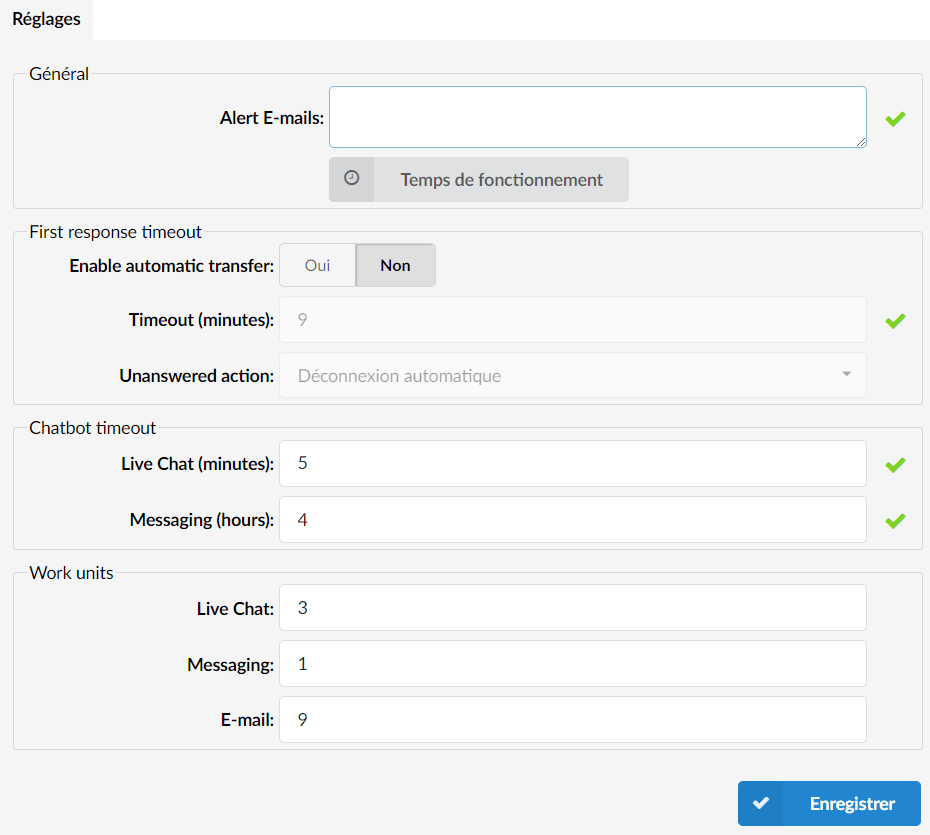
Notification emails

The “Alert Emails” section is specially designed to help administrators manage situations in which a customer is banned from using the live chat or SMS features. This section allows you to specify an email address that will receive alert notifications in such circumstances. If the system detects malicious behavior and bans a user from accessing live chat or SMS, an alert email will be sent to the specified address, providing a quick overview of the incident.
Schedules
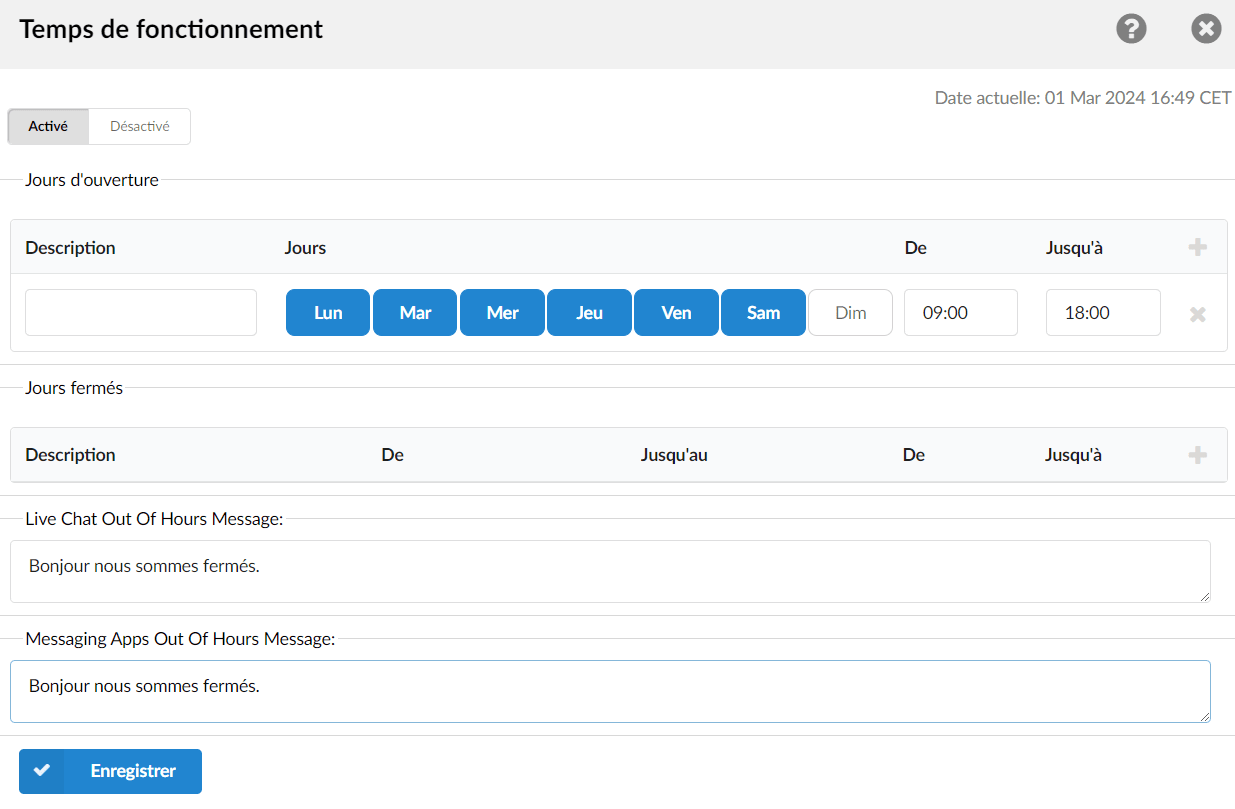
If a message arrives outside these hours, the customer will be informed that they have accessed the system outside its operating hours. This is where users globally configure the operating hours.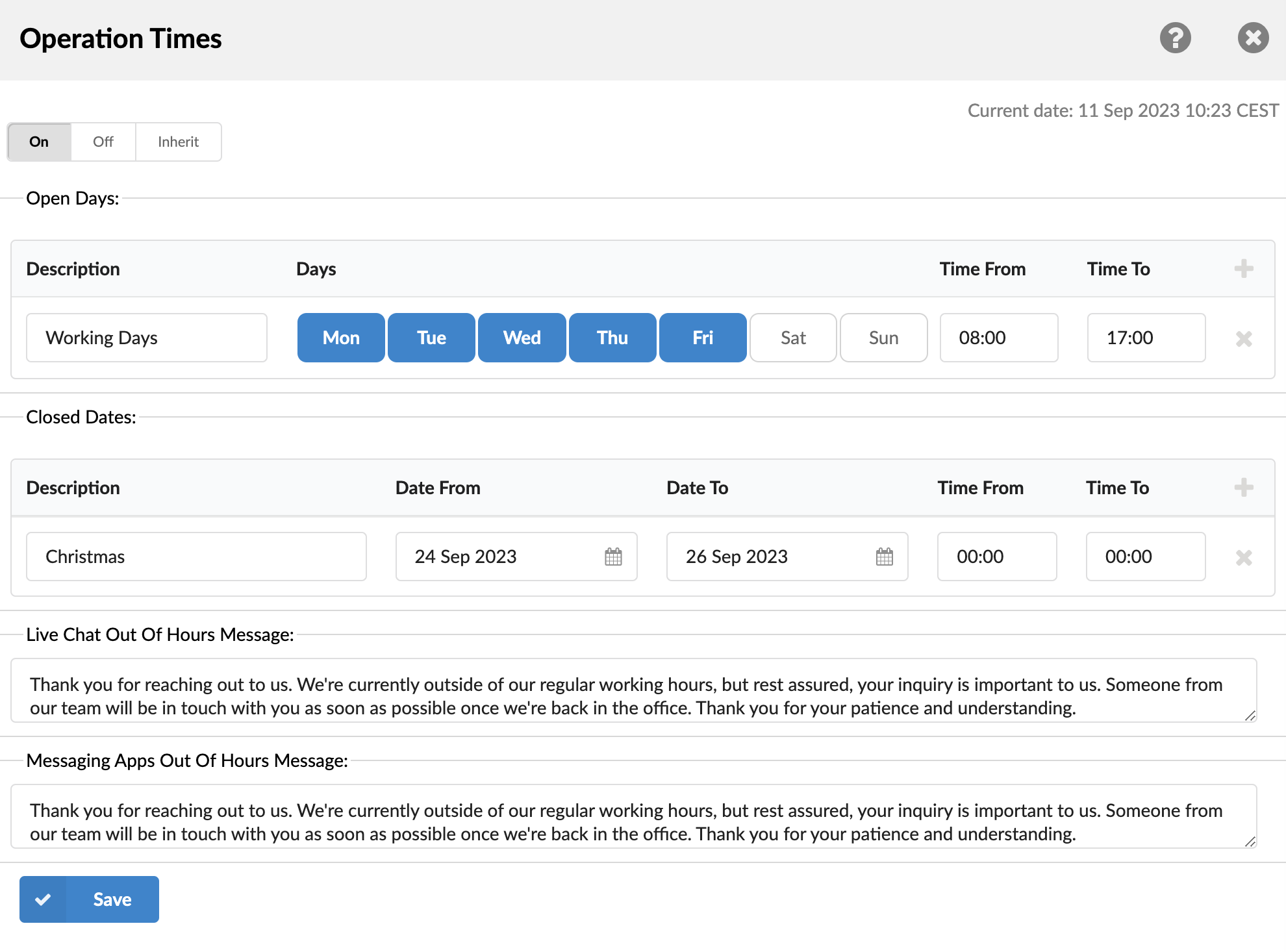
Operating hours
- Schedules:
Enable operating hours.
The description of the destinations follows in this order of priority:
Opening days: The “Open Days” section allows you to define the days of the week and the time ranges during which your services are available. The section lists all days from Monday to Sunday, as well as the “Time from” and “Time until” fields for each day.
By defining these ranges, you establish the time window during which users can send messages, emails, or participate in live chats with your service. For example, if you set “Time from” to 9:00 AM and “Time until” to 5:00 PM from Monday to Friday, users will be able to communicate with you during these specific weekday hours.
This configuration helps manage customer expectations and also ensures that your team has adequate staffing during the periods when interaction is possible.Closed days : “Closing Dates” is a section in the “Operating Hours” settings that allows you to specify particular dates and times when your service will be unavailable. This section includes fields for “Description”, “Start Date”, “End Date”, “Start Time”, and “End Time”.
Description: This field lets you provide a brief explanation or reason for the closure, such as “Public holiday” or “Scheduled maintenance”.
Start date and End date: these fields allow you to define a date range during which your service will be closed. This can be a single day or several days.
Start Time and End Time: these fields allow you to further refine the specific hours of unavailability within the chosen date range.
By configuring the “Closing dates” section, you ensure that users are aware that they will not be able to send messages, emails, or participate in live chats during the specified hours. This helps manage customer expectations and allows you to plan your staffing needs accordingly.Live chat message outside business hours allows you to define an automated response to customer requests that arrive outside of operating hours. This message informs customers when they can expect a reply, thereby improving their experience and managing their expectations.
Messaging apps message outside business hours allows you to configure an automated response to customer requests received via messaging apps when you are out of service. This automatic response helps manage customer expectations regarding when they will receive a reply from you.
First response delay
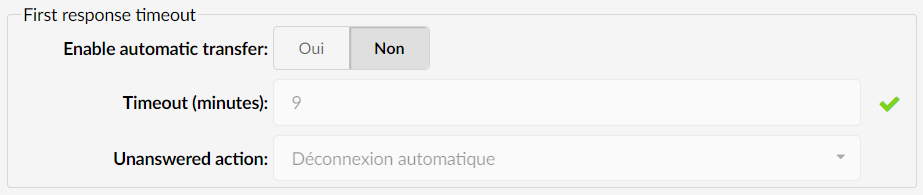
This feature enables automatic ticket transfers upon expiration of the first response deadline for live chat or SMS. Although set to "No" by default, it can be toggled to "Yes". Users can define an "expiration timeout" in minutes and dictate a "no-response action", such as logging out or pausing an agent. This mechanism ensures that customer requests are not left unanswered by redirecting them to an available agent from a designated queue.
Enable automatic transfer
- Yes : Allows automatic transfer of Live Chat or SMS messages.
- No : Disables automatic transfer.
Timeout (minutes)
Set the duration (in minutes) of a timeout. If no response is received within this time, the system will take the defined "No Answer Action".
No-answer action
Choose the action to take when no answer is received within the defined time.
- Automatic pause : automatically pauses the agent if they do not respond to a live chat ticket or an SMS message.
- Automatic logout : automatically logs the agent out.
Chatbot timeout

This section is designed to efficiently manage system resources. If a customer interacts with the chatbot but makes no selection, the session will automatically close after the time specified in this section. This helps free up system resources that could otherwise be unnecessarily consumed.
- Live chat (minutes)
Set the timeout (in minutes) for a live chat. If no response is received within this time, the system will end the live chat session.
- Messaging (hours)
Set the timeout (in hours) for messaging (SMS). If no response is received within this time, the system will end the messaging session.
Work units
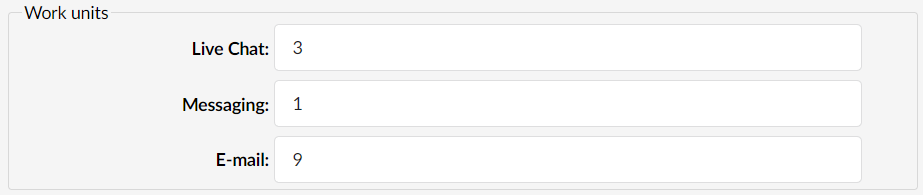
Configure the following work units to calculate the workload in the Agent application:
- Live chat : set the value of the live chat work units.
- Messaging : set the value of the messaging work units.
- Email : set the value of the email work units.
