


FR | EN
Wiki Bicom Systems EnglishWiki Bicom Systems English
  • Home
  • Documentation
    • PBXware
      • Installation
      • Getting started
      • Editions
        • PBXware Multi-Tenant
        • PBXware Business
        • PBXware Contact Center
        • PBXware Service Provider
      • Advanced services
      • Supported phones
      • Autoprovisioning
    • Communicator
      • Communicator Desktop
      • Communicator GO
      • Communicator Web
    • SERVERware
      • Standalone
      • Mirror
      • Cluster
    • sipPROT
    • Tutorials
  • Videos
    • Communicator Desktop
  • Operators
  • Downloads
  • FAQ
Support
leafleaf
Most popular:
  • PBXware
  • Communicator
  • SIP
  1. Home
  2. PBXware Contact Center
  3. 1. Global view
Updated on February 6, 2024
PBXware Contact Center
  • Folder icon closedFolder open icon1. Global view
  • Folder icon closedFolder open icon2. Dashboard
  • Folder icon closedFolder open icon3. Extensions
  • Folder icon closedFolder open icon4. Trunks
  • Folder icon closedFolder open icon5. SMS
  • Folder icon closedFolder open icon6. DID
  • Folder icon closedFolder open icon7. Conferences
  • Folder icon closedFolder open icon8. Extension groups
  • Folder icon closedFolder open icon9. IVR
  • Folder icon closedFolder open icon10. Omnichannel: Voice
    • Queues
    • Dialer
    • Feedback forms
  • Folder icon closedFolder open icon11. Omnichannel: Messaging
    • Queues
    • Chatbots
    • Channels
    • Visitor application
    • Settings
  • Folder icon closedFolder open icon12. Omnichannel: General
    • Agents
    • Voice statistics
    • Voicemail statistics
    • License
  • Folder icon closedFolder open icon13. Voicemail
  • Folder icon closedFolder open icon14. Supervise
  • Folder icon closedFolder open icon15. Reports
  • Folder icon closedFolder open icon16. Meetings
  • Folder icon closedFolder open icon17. Statistics
  • Folder icon closedFolder open icon18. Fax
  • Folder icon closedFolder open icon19. CRM
  • Folder icon closedFolder open icon20. System
  • Folder icon closedFolder open icon21. Routes
  • Folder icon closedFolder open icon22. LCR
  • Folder icon closedFolder open icon23. Service plans
  • Folder icon closedFolder open icon24. Apps
  • Folder icon closedFolder open icon25. Settings
  • Folder icon closedFolder open icon26. Admin settings
  • Folder icon closedFolder open icon27. Account settings

1. Global view

Estimated reading: 2 minutes

Administration interface

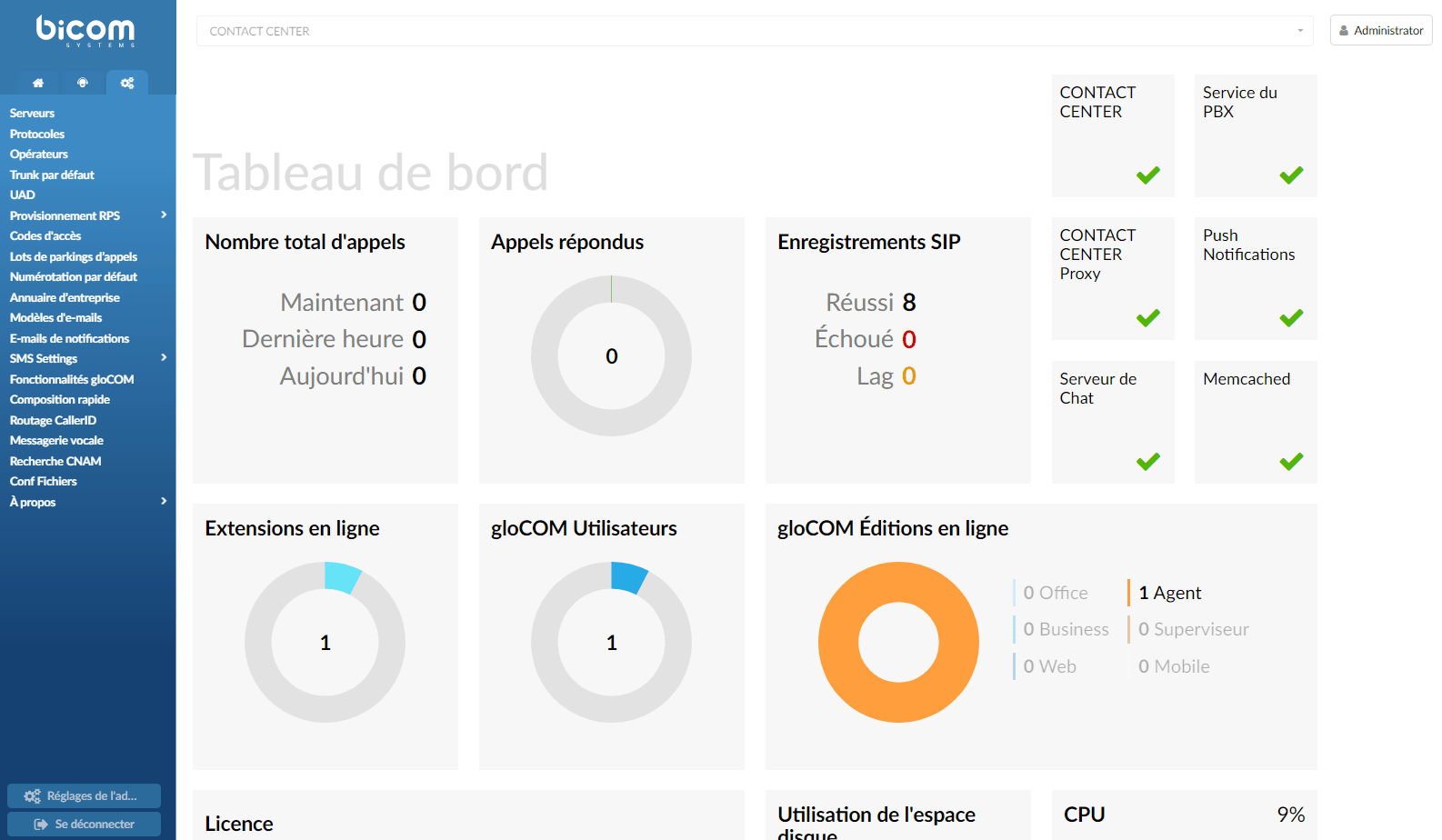
The system dashboard is a visual display of the most important PBXware indicators:

  • Calls
  • SIP registrations
  • Services
  • License
  • Hardware resource usage
  • PBXware menu

PBXware menu

The PBXware menu is located on the left side panel and presents two main tabs:

  • Home
  • Settings

At the bottom of the left navigation menu are the logout button and the administration settings, which allow you to modify various system settings in PBXware.

Actions menu

The action menu located at the top right allows you to:

  • Change the password of the account you are logged in with
  • Set up 2-step verification
  • Change language
  • Reload PBXware
  • Restart PBXware

Role-based administration

System administration can be delegated to different users in order to perform role-based administration. An unlimited number of users and groups can be created by PBXware administrators. Each user will then only have access to the PBXware menu sections according to the group membership permissions.

This is commonly used to allow managers or supervisors to access sections of PBXware for which they have adequate knowledge and experience.

Standard and advanced options

PBXware was designed for simplicity but also to offer extensive configuration options. To achieve both of these goals, the administration provides modes: standard and advanced in all sections.

Standard options

Standard mode is designed to allow an easy administration method, since the level of configuration knowledge required is based on information fields common to everyone (name, email address, etc.). This is possible because PBXware uses a powerful template system that automatically preconfigures all the advanced options, leaving only the common information values to be entered.

Advanced options

Advanced mode, on the other hand, requires a much better knowledge of the system in order to be able to fine-tune the system parameters for various applications and uses. This documentation provides detailed information about all the advanced options.

Thus, (future) administrators will be able, through continuous practice of the advanced options, to administer PBXware efficiently and easily.

For simplicity, the options available in the standard options section are not repeated in the advanced options.

Share

1. Global view

Or copy the link below

Clipboard Icon
CONTENT
Leaf Illustration

© Bicom Systems France

Last updated: 4 July 2026 Legal noticePrivacyCookiesTerms © 2026 Bicom Systems