



17. Statistics
The statistics can be used to generate detailed information about the number of calls made during the hour, day, month, etc. They can also be displayed by extension, which means that when you enter all the desired search information, you get a list with the number of calls per extension on the system. It also contains a page for simultaneous calls and an advanced page with reports.
Daily statistics
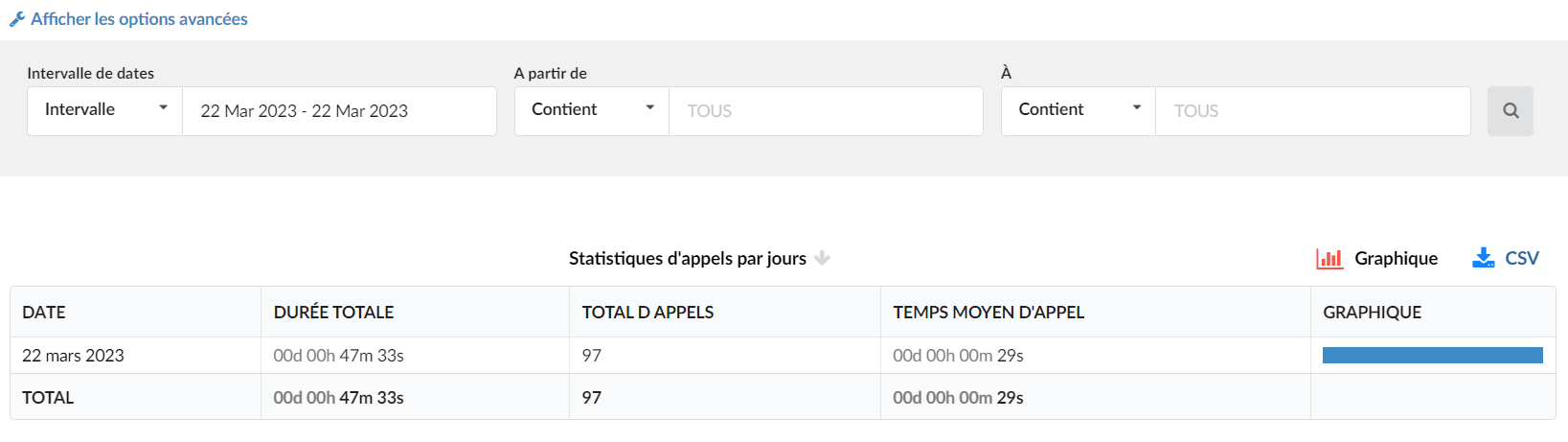
In order to view the daily statistics, go to the left side panel of PBXware then to Statistics > Daily.
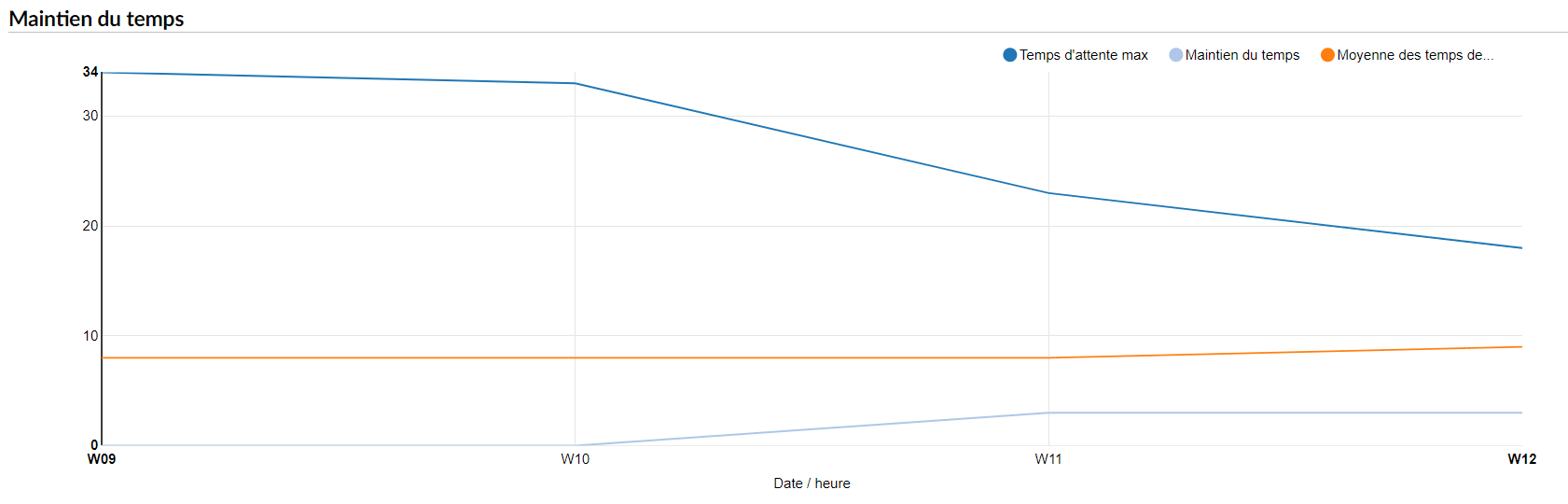
The daily statistics indicate the number of calls per day. They present a list of days with the number of calls made during those days, the average call duration and graphs.
By clicking on “Show advanced options”, the search criteria will be expanded and the following items will be offered to users:

Date range
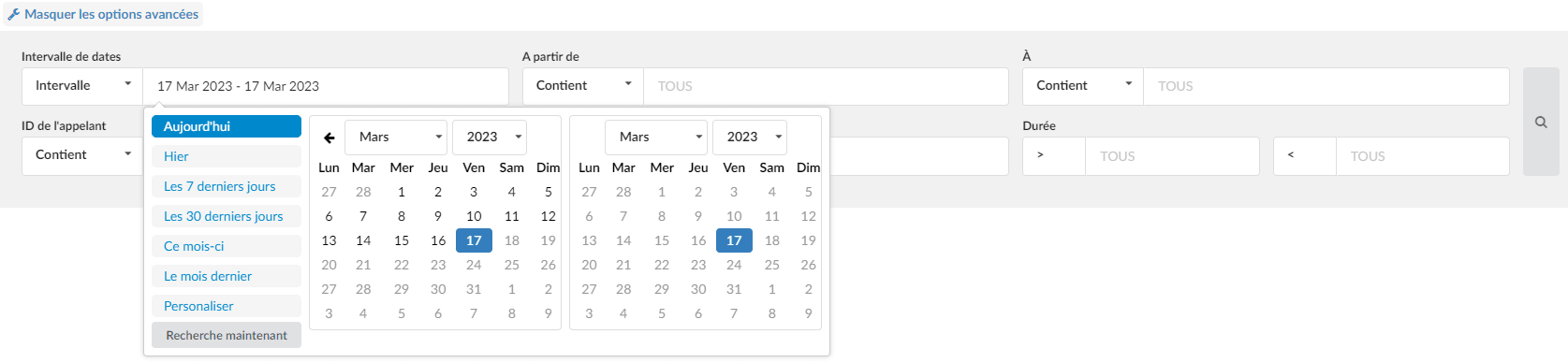
Users have a drop-down list with the following options:
Interval:
Select a date range by clicking on a calendar or choose the following options:
- Today
- Yesterday
- The last 7 days
- The last 30 days
- This month
After selection, users will be presented with statistics that only cover this period.
Starting from
In this field, users must enter a number from which the desired call is made. By default, the "ALL" modifier is present in this field, which means that statistics will be compiled for all calls on the system that took place within the selected date range.
If users want to see the statistics of a few particular numbers, they must write all the desired numbers separated by commas.
(For example, to display calls made from extension 104 and remote number 44207296666, the user must type "104,44207296666").
In addition, users have a drop-down list with the following options:
Equals
Performs statistics only for a number that is equal to the written number(s).
(For example, John sets this option to “Equals” and types the number 101. The statistics will only be displayed for calls made from the number 101).Starts with
Performs statistics for all numbers that begin with the written number(s).
(For example, John sets this option to “Starts with” and types the number 101. Suppose John made calls from the numbers 1011 and 105. The statistics will only be displayed for calls made from numbers starting with the number 101, in this case from the numbers 101 and 1011).Contains
Performs statistics for all numbers that contain the written number(s).
(For example, John sets this option to “Contains” and types the number 101. Suppose John made calls from the numbers 1011, 2101 and 501. The statistics will only be displayed for calls made from numbers containing the number 101, in this case from the numbers 1011 and 2101).Ends with
Performs statistics for all numbers that end with the written digit(s).
(For example, John sets this option to “Ends with” and types the number 101. Suppose John made calls from the numbers 1101, 2101 and 501: 1101, 2101 and 501. The statistics will only be displayed for calls made from numbers that end with the number 101, in this case from the numbers 1101 and 2101).
To
In this field, users must indicate the number to which the desired call is made. By default, the "ALL" modifier is present in this field, which means that statistics will be compiled for all calls on the system that took place during the selected period.
If users want to see the statistics of a few particular numbers, they must write all the desired numbers separated by commas.
(For example, to display calls made to extension 104 and remote number 44207296666, the user must type "104,44207296666").
In addition, users have a drop-down list with the following options:
Equals
Performs statistics only for a number that is equal to the written number(s).
(For example, John sets this option to “Equals” and types the number 101. The statistics will only be displayed for calls made to the number 101).Starts with
Performs statistics for all numbers that begin with the written digit(s).
(For example, John sets this option to “Starts with” and types the number 101. Suppose John called the numbers 1011 and 105. The statistics will only be displayed for calls made to numbers starting with the number 101, in this case to the numbers 101 and 1011).Contains
Performs statistics for all numbers that contain the written number(s).
(For example, John sets this option to “Contains” and types the number 101. Suppose John called the numbers 1011, 2101 and 501. The statistics will be
statistics will only be displayed for calls made to numbers that contain the number 101, in this case to numbers 1011 and 2101).Ends with
Performs statistics for all numbers that end with the written digit(s).
(For example, John sets this option to “Ends with” and types the number 101. Suppose John called the numbers 1101, 2101 and 501: 1101, 2101 and 501. The statistics will only be displayed for calls made to numbers that end with the number 101, in this case to the numbers 1101 and 2101).
Caller ID
Filter the statistics based on the caller ID.
Furthermore, users have a drop-down list with the following options:Equals
Performs statistics only for Caller IDs that are equal to the written Caller ID.
Starts with
Performs statistics for all Caller IDs whose first letters are identical to those of the Caller ID entered in the field opposite.
(For example, John chooses this option and types “Tech”. The statistics will be performed for all caller IDs that start with “Tech”, for example, “TechSupport”).Contains
Performs statistics for all Caller IDs that contain the same letters as in the field opposite.
(For example, John chooses this option and types “Tech”. The statistics will be performed for all call numbers that start with “Tech”, for example, “TechSupport”, “TestTechDepartment”).- Ends with
Performs statistics for all Caller IDs whose ending letters are the same as the Caller ID written in the field opposite.
(For example, John chooses this option and types “Tech”. The statistics will be performed for all caller numbers that end with “Tech”, for example, “TestTech”).
SIP account
Displays calls filtered based on a trunk. Enter a trunk name or several trunk names separated by commas.
In addition, users have two drop-down lists with the following options:
First list:
Equals
Performs statistics only for trunks whose name is equal to the written name.
Starts with
Performs statistics for all trunks whose name begins with the written name.
Contains
Performs statistics for all trunks that contain a written name.
Ends with
Performs statistics for all trunks that end with the written name.
Second list:
Select the outbound trunk technology:
- SIP
- IAX
- Local
- DAHDI
Duration
In these fields, you can define a range for the call duration in seconds.
Both fields can be modified based on the selected equality signs:- > (greater than)
- >= (greater than or equal)
- == (equal to)
- <= (less than or equal)
- < (less than)
(For example, if the user wants to see the statistics of calls that last more than 15 seconds, but less than 45 seconds, the first field will contain ">" and "15", and the second "<" and "45").
Daily statistics
This table shows the total number of calls per day within the date range selected in the search field.
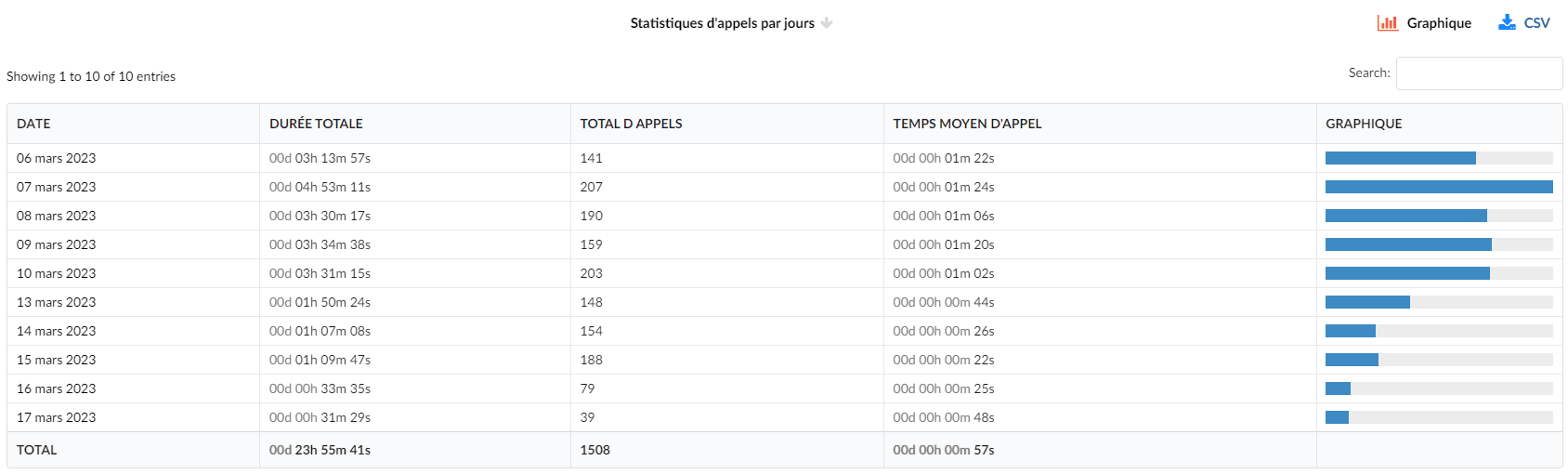
This table shows the total number of calls per day within the date range selected in the search field.
DATE
Clickable date for which the total number of calls is displayed
TOTAL DURATION
Total call duration on that day
TOTAL CALLS
Total number of calls made on that day
AVERAGE CALL TIME
Average call duration for this particular day
GRAPHICAL
This field shows the graphical representation of all calls of the day, compared to the day when the total call duration was the highest. The day when the total call duration was the highest is represented by a 100% bar in this field and all other days are represented by a bar relative to that day.
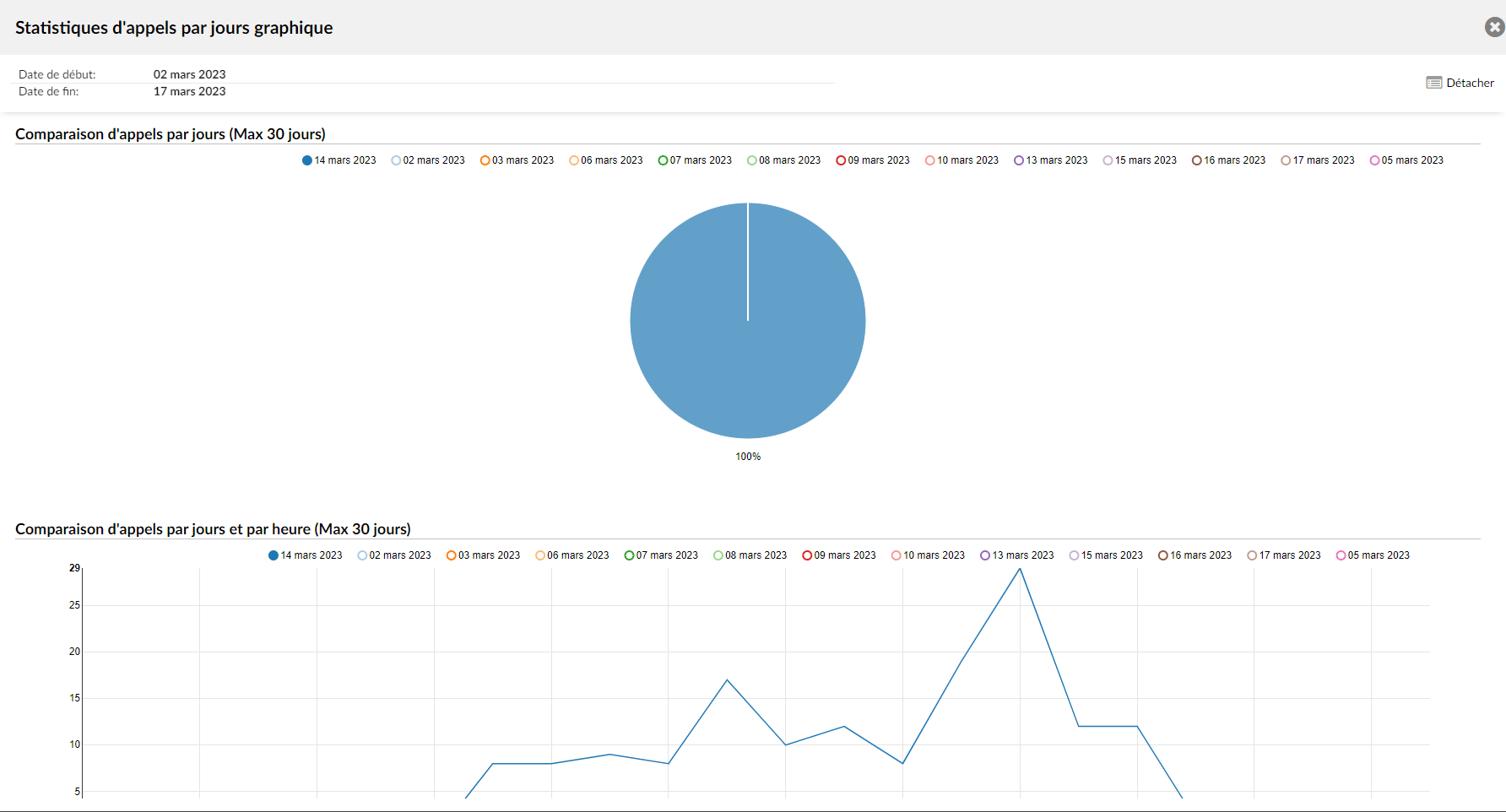
Daily call distribution statistic
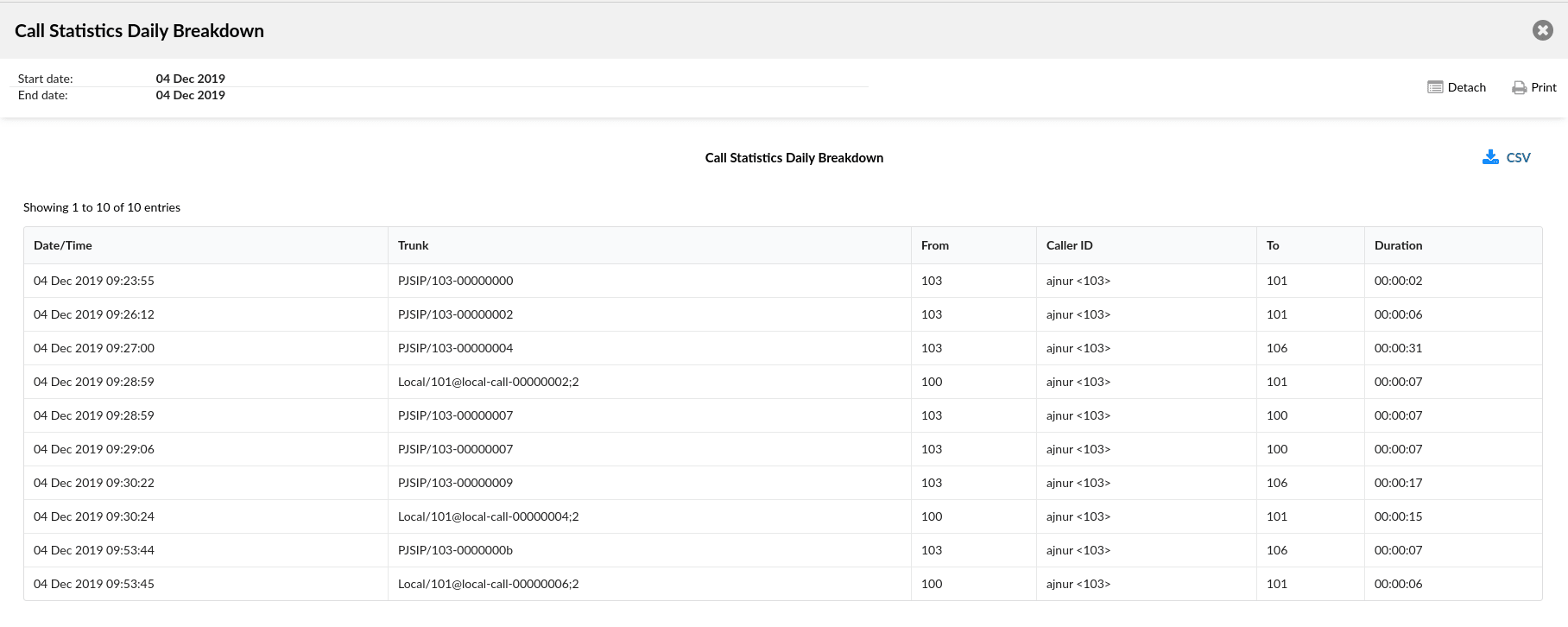
By clicking on any day of the daily statistics, a new window will open with a breakdown of calls for that range.
Date/Time
Date and time of the call.
Starting from
The extension number from which the call was made.
Caller ID
Caller ID of the user who placed the call.
To
The external extension/number to which the call was made.
Duration
Call duration
Monthly statistics
A list of months will be displayed with the number of calls made during the selected period.

By clicking on the “Advanced search” button, the above search will be expanded and the user will be able to choose from other criteria:

Date range:
Users have a drop-down list with the following options:
Interval:
Select a date range by clicking on a calendar or choose the following options:
- Today
- Yesterday
- The last 7 days
- The last 30 days
- This month
After selection, users will be presented with statistics that only cover this period.
Starting from
In this field, users must enter a number from which the desired call is made. By default, the "ALL" modifier is present in this field, which means that statistics will be compiled for all calls on the system that took place within the selected date range.
If users want to see the statistics of a few particular numbers, they must write all the desired numbers separated by commas.
(For example, to display calls made from extension 104 and remote number 44207296666, the user must type "104,44207296666").
In addition, users have a drop-down list with the following options:
Equals
Performs statistics only for a number that is equal to the written number(s).
(For example, John sets this option to “Equals” and types the number 101. The statistics will only be displayed for calls made from the number 101).Starts with
Performs statistics for all numbers that begin with the written digit(s).
(For example, John sets this option to “Starts with” and types the number 101. Suppose John made calls from the numbers 1011 and 105. The statistics will only be displayed for calls made from numbers starting with the number 101, in this case from the numbers 101 and 1011).Contains
Performs statistics for all numbers that contain the written number(s).
(For example, John sets this option to “Contains” and types the number 101. Suppose John made calls from the numbers 1011, 2101 and 501. The statistics will only be displayed for calls made from numbers containing the number 101, in this case from the numbers 1011 and 2101).Ends with
Performs statistics for all numbers that end with the written digit(s).
(For example, John sets this option to “Ends with” and types the number 101. Suppose John made calls from the numbers 1101, 2101 and 501: 1101, 2101 and 501. The statistics will only be displayed for calls made from numbers that end with the number 101, in this case from the numbers 1101 and 2101).
To
In this field, users must indicate the number to which the desired call is made. By default, the "ALL" modifier is present in this field, which means that statistics will be compiled for all calls on the system that took place during the selected period.
If users want to see the statistics of a few particular numbers, they must write all the desired numbers separated by commas.
(For example, to display calls made to extension 104 and remote number 44207296666, the user must type "104,44207296666").
In addition, users have a drop-down list with the following options:
Equals
Performs statistics only for a number that is equal to the written number(s).
(For example, John sets this option to “Equals” and types the number 101. The statistics will only be displayed for calls made to the number 101).Starts with
Performs statistics for all numbers that begin with the written digit(s).
(For example, John sets this option to “Starts with” and types the number 101. Suppose John called the numbers 1011 and 105. The statistics will only be displayed for calls made to numbers starting with the number 101, in this case to the numbers 101 and 1011).Contains
Performs statistics for all numbers that contain the written number(s).
(For example, John sets this option to “Contains” and types the number 101. Suppose John called the numbers 1011, 2101 and 501. The statistics will be
statistics will only be displayed for calls made to numbers that contain the number 101, in this case to numbers 1011 and 2101).Ends with
Performs statistics for all numbers that end with the written digit(s).
(For example, John sets this option to “Ends with” and types the number 101. Suppose John called the numbers 1101, 2101 and 501: 1101, 2101 and 501. The statistics will only be displayed for calls made to numbers that end with the number 101, in this case to the numbers 1101 and 2101).
Caller ID
Filter the statistics based on the caller ID.
Furthermore, users have a drop-down list with the following options:Equals
Performs statistics only for Caller IDs that are equal to the written Caller ID.
Starts with
Performs statistics for all Caller IDs whose first letters are identical to those of the Caller ID entered in the field opposite.
(For example, John chooses this option and types “Tech”. The statistics will be performed for all caller IDs that start with “Tech”, for example, “TechSupport”).Contains
Performs statistics for all Caller IDs that contain the same letters as in the field opposite.
(For example, John chooses this option and types “Tech”. The statistics will be performed for all call numbers that start with “Tech”, for example, “TechSupport”, “TestTechDepartment”).Ends with
Performs statistics for all Caller IDs whose ending letters are the same as the Caller ID written in the field opposite.
(For example, John chooses this option and types “Tech”. The statistics will be performed for all caller numbers that end with “Tech”, for example, “TestTech”).
SIP account
Displays calls filtered based on a trunk. Enter a trunk name or several trunk names separated by commas.
In addition, users have two drop-down lists with the following options:
First list:
Equals
Performs statistics only for trunks whose name is equal to the written name.
Starts with
Performs statistics for all trunks whose name begins with the written name.
Contains
Performs statistics for all trunks that contain a written name.
Ends with
Performs statistics for all trunks that end with the written name.
Second list:
Select the outbound trunk technology:
- SIP
- IAX
- Local
- DAHDI
Duration
In these fields, you can define a range for the call duration in seconds.
Both fields can be modified based on the selected equality signs:- > (greater than)
- >= (greater than or equal)
- == (equal to)
- <= (less than or equal)
- < (less than)
(For example, if the user wants to see the statistics of calls that last more than 15 seconds, but less than 45 seconds, the first field will contain ">" and "15", and the second "<" and "45").
Monthly statistics
This table shows the total number of calls per day within the date range selected in the search field.

DATE
Clickable date for which the total number of calls is displayed
TOTAL DURATION
Total call duration
TOTAL CALLS
Total number of calls made
GRAPHICAL
This field shows the graphical representation of all calls of the day, compared to the day when the total call duration was the highest. The day when the total call duration was the highest is represented by a 100% bar in this field and all other days are represented by a bar relative to that day.
Monthly call distribution statistic
By clicking on “Monthly call statistics”, a new window will open with a detailed breakdown of calls for each day of the selected period.
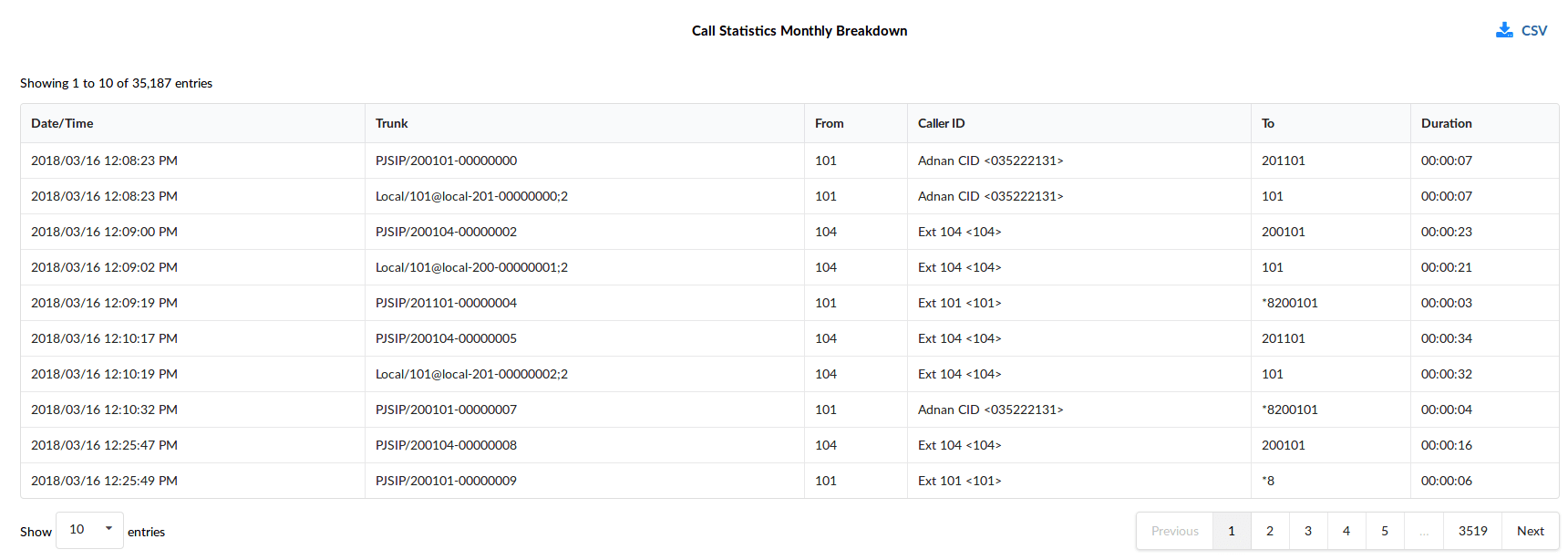
Date/Time
Date and time of the call.
SIP account
Name of the trunk used for the call.
Starting from
The number of the extension from which the call was made.
- Caller ID
Caller ID of the user who placed the call.
To
The external extension/number to which the call was made.
Duration
Call duration
Extension statistics
This section gives users an overview of the reports table showing the extension statistics relating to "All answered calls", "All calls", "All unanswered calls", "Calls by direction", "Incoming calls", and "Internal calls".
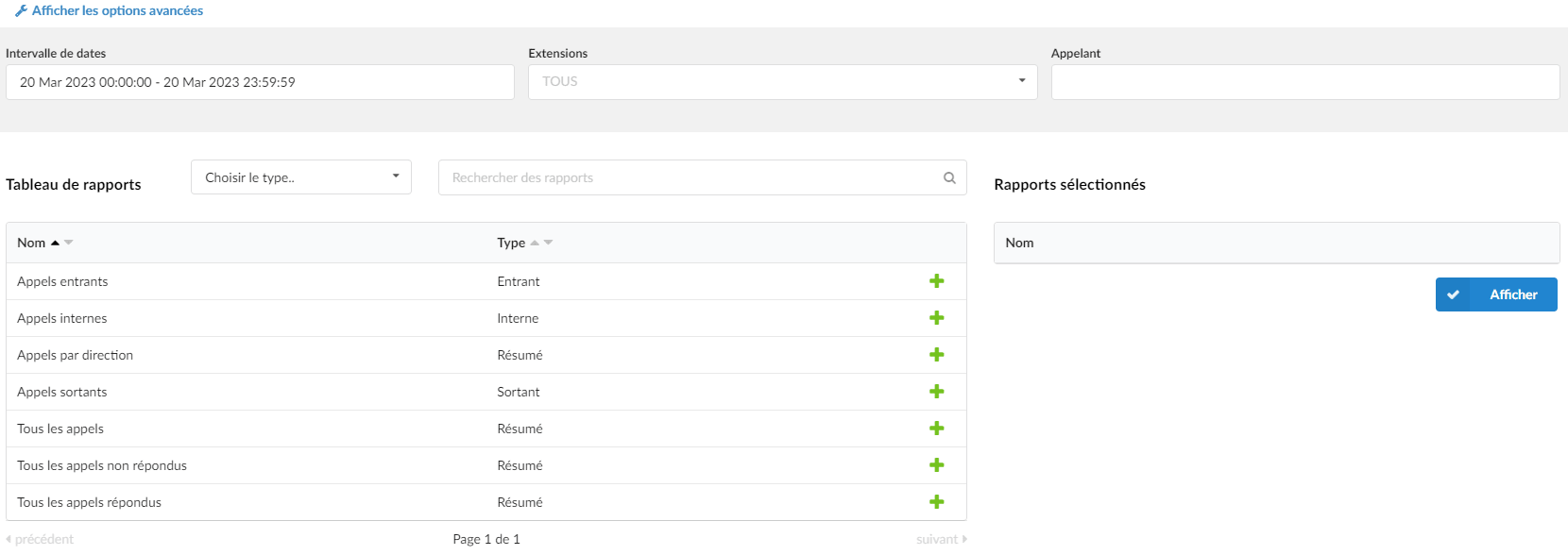
By clicking on “Show advanced options”, the search criteria will be expanded and the following items will be offered to users:
- Call duration: Filters the data based on a call duration lower or higher than the defined number.
The default values are: 10, 20, 30, 60, 120. Users can also set random numbers.
- Hold duration: Filters the data based on a hold duration lower or higher than the defined value.
The default values are: 10, 20, 30, 60, 120. Users can also set random numbers.
- Time format: Filters the data by date format type: “dd hh mm ss”, “dd:hh:mm:ss”, “days”, “hours”, “minutes”, “seconds”.
Filters
Users can filter the reports based on the “date range”, the “extensions” and the “caller”.
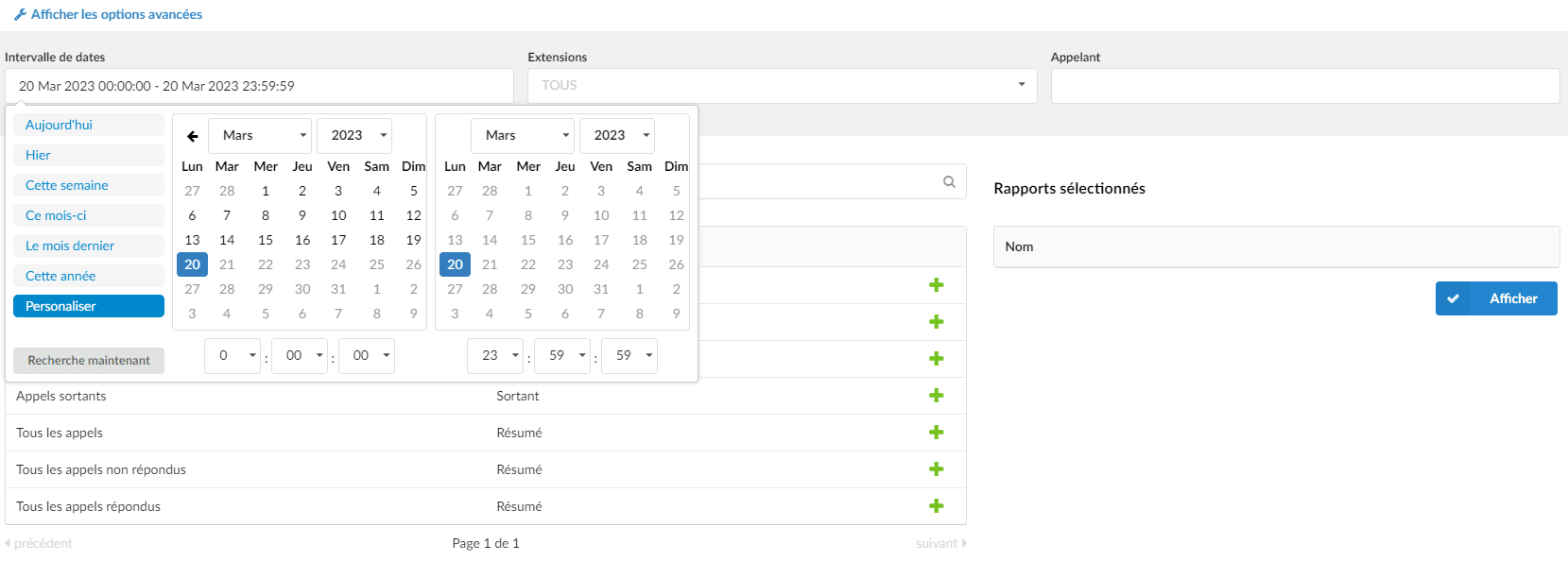
- Date range: Filters the data by date range, meaning the user can define a desired range for which the data should be displayed. It can be a custom range or one of the default predefined ranges;
(“Today”, “Yesterday”, “This week”, “This month”, “Last month”, “This year”).
- Extensions: Filters the data based on the extension or extensions that can be chosen from the drop-down menu.
- Caller: Filters the data by caller.
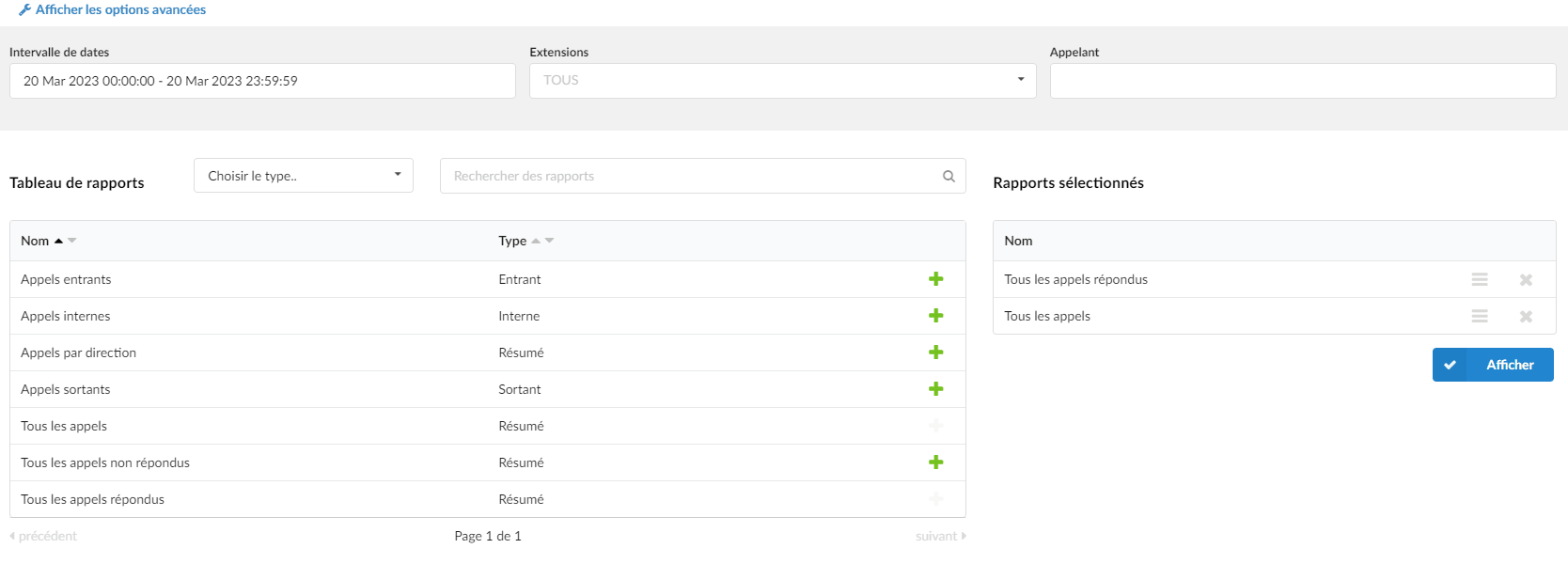
- Select the type: In this drop-down list, the user can choose the type of report to display in the reports table ("Summary", "Outbound", "Inbound", "Internal").
- Search reports: The user can type the first letters of the report name to filter and display it in the Reports table.
To generate reports, users must first select one or more reports by clicking the green plus sign. This report(s) will then be moved to the "Selected reports" section. By clicking the "Show" button, the selected reports will appear in a new window.
All answered calls
Users can access the “All answered calls” report to obtain information about all calls on the system that were answered.
All answered calls

- Calls – Contains one column; Answered: Sum of all answered calls.
- Conversation duration – Contains four columns; Total: Total duration of all answered calls. Min: Minimum duration of a single answered call. Max: Maximum duration of a single answered call. Average: Average value of conversation duration for all answered calls.
- Time keeping – Contains four columns; Total: Total hold time for all answered calls. Min: Minimum hold time for a single answered call. Max: Maximum hold time for a single answered call. Average: Average hold time for all answered calls.
All calls
Users can access the “All calls” report to obtain information about all calls on the system.
All calls
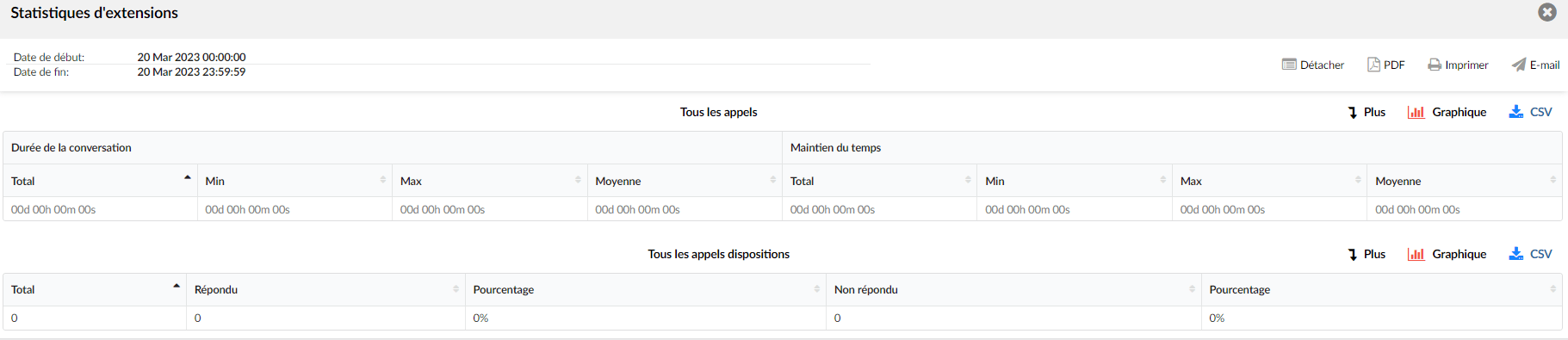
- Conversation duration – Contains four columns; Total: Total talk time. Min: Minimum duration of a call. Max: Maximum duration of a call. Average: Average value of talk time for all calls.
- Time keeping – Contains four columns; Total: Total hold time. Min: Minimum hold time for a single call. Max: Maximum hold time for a single call. Average: Average value of hold time for all calls.
All calls by dispositions
- Total – Sum of all calls.
- Answered – Sum of all answered calls.
- Percentage – Percentage of all calls that received an answer.
- Unanswered – Sum of all unanswered calls.
- Percentage – Percentage of all calls that remained unanswered.
All unanswered calls
Users can access the “All unanswered calls” report to obtain information about all calls on the system that remained unanswered.

- Calls – Contains one column; Unanswered: Sum of all unanswered calls.
- Time keeping – Contains four columns; Total: Total hold time value for all unanswered calls. Min: Minimum hold time for all unanswered calls. Max: Maximum hold time for all unanswered calls. Average: Average value of hold time for all unanswered calls.
Calls by direction

- Extension – Name and number of the caller's extension.
- Orientation – By clicking on the Extension field, the direction column collapses and the user can see the number of call types per direction (“inbound external calls”, “inbound internal calls”, “outbound internal calls”, “outbound external calls”).
- Calls – Divided into three columns; Number: Represents the total number of calls per destination. Answered: Represents the total number of calls taken per destination. Unanswered: Represents the total number of unanswered calls.
- Conversation duration – Divided into three columns; Total: Represents the total talk time. Average: The average value of talk time per direction. Average delay: The average delay time for calls per direction.
Inbound calls
Users can access the “Incoming calls” report to obtain information about all incoming calls on the system.
Inbound calls
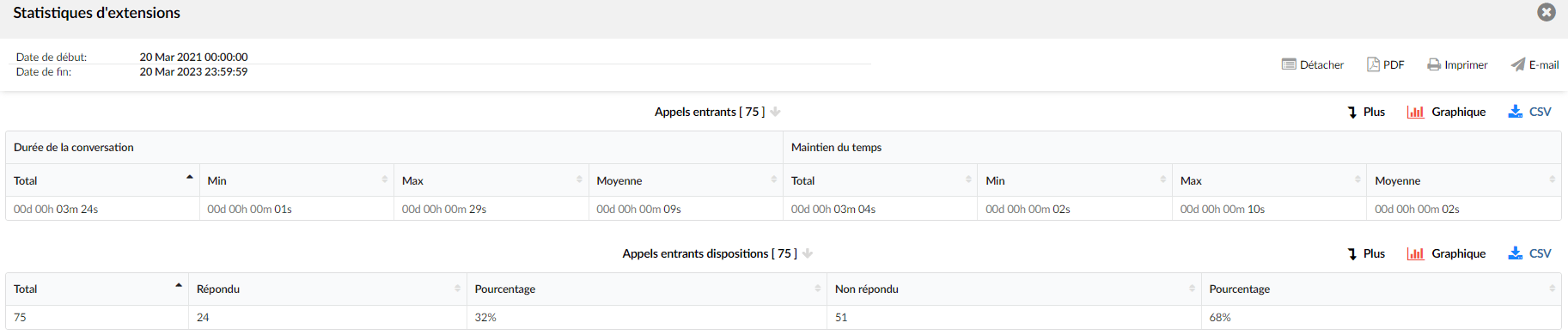
- Conversation duration – Contains four columns; Total: Total inbound talk time. Min: Minimum duration of an inbound call. Max: Maximum duration of an inbound call. Average: Average value of talk time for all inbound calls.
- Time keeping – Contains four columns; Total: Total hold time for the inbound call. Min: Minimum hold time for a single inbound call. Max: Maximum hold time for a single inbound call. Average: Average value of hold time for all inbound calls.
All dispositions on incoming calls
- Total – Sum of all inbound calls.
- Answered – Sum of all answered inbound calls.
- Percentage – Percentage of all inbound calls that received an answer.
- Unanswered – Sum of all unanswered inbound calls.
- Percentage – Percentage of all inbound calls that remained unanswered.
Internal calls
Internal calls
Users can access the “Internal calls” report to obtain information about all internal calls on the system.
Internal calls

- Extension – Name and number of the caller's extension.
- Orientation – By clicking on the Extension field, the Direction column collapses and the user can see the number and type of calls per direction (“inbound” or “outbound”).
- Calls – Divided into three columns; Number: Represents the total number of calls per destination. Answered: Represents the total number of calls taken per destination. Unanswered: Represents the total number of calls with no answer.
Outbound calls
Users can access the “Outgoing calls” report to obtain information about all outgoing calls on the system.
Outbound calls
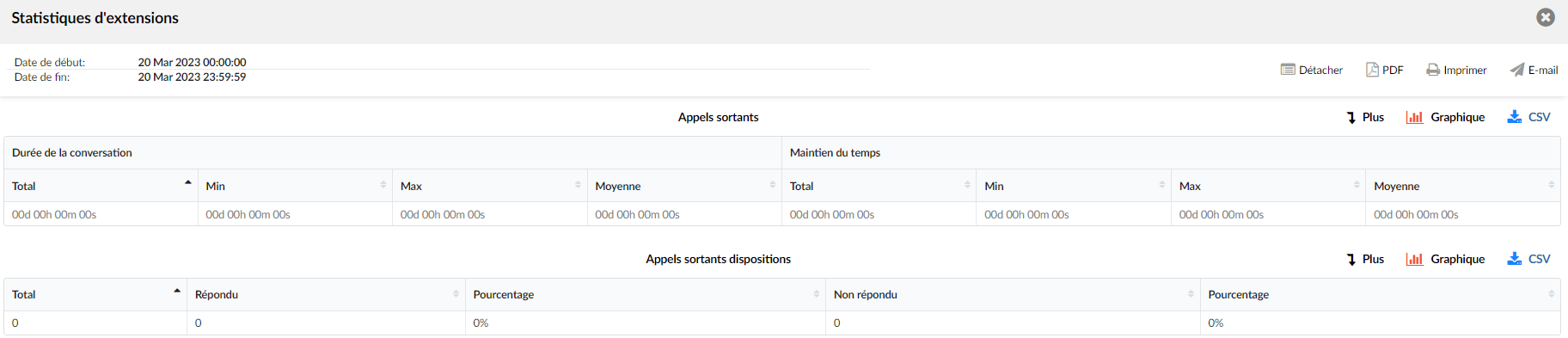
- Conversation duration – Contains four columns; Total: Total outbound talk time. Min: Minimum duration of an outbound call. Max: Maximum duration of an outbound call. Average: Average value of talk time for all outbound calls.
- Time keeping – Contains four columns; Total: Total hold time for outbound calls. Min: Minimum hold time for a single outbound call. Max: Maximum hold time for a single outbound call. Average: Average value of hold time for all outbound calls.
Outbound call dispositions
- Total – Sum of all outbound calls.
- Answered – Sum of all answered outbound calls.
- Percentage – Percentage of all outbound calls that received an answer.
- No answer – Sum of all unanswered outbound calls.
- Percentage – Percentage of all outbound calls that remained unanswered.
Distribution
By clicking on the “Breakdown” buttons, the selected reports will appear in a new window, with more details about the extension statistics calls.
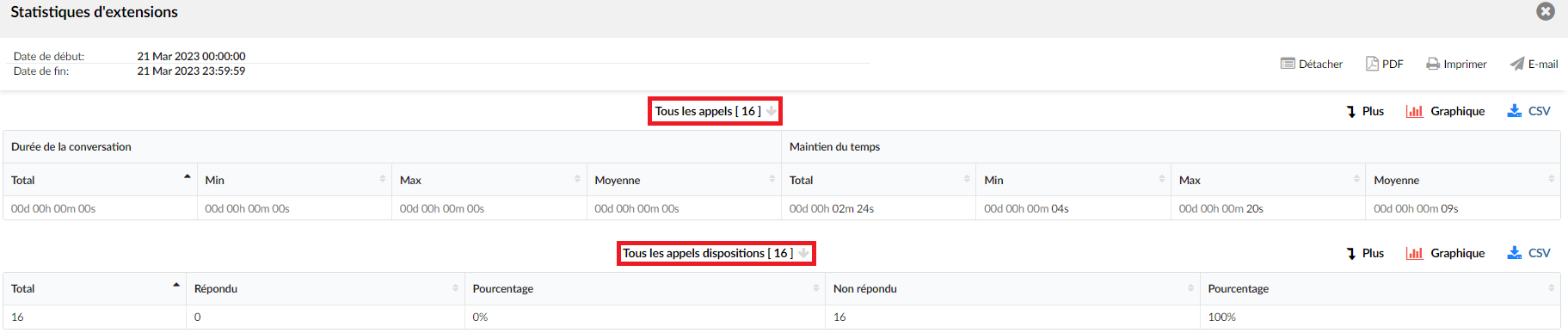
The breakdown shares a similar format for each report.
- Linked ID – Event ID.
- Date – Date on which the event occurred.
- Extension – Name and number of the extension from which the call was initiated.
- Remote number – Destination number that was dialed.
- Wait time – Time the caller waited for their call to be answered.
- Conversation duration – Time spent on a call.
- Conference – This field provides information allowing the user to know whether it was a conference call or not. (If it is a conference call, this column will be filled with “Yes”; if it is a normal call, this field will be empty.
- Call type – The user can see the call type in this column (internal inbound, external inbound, internal outbound, external outbound).
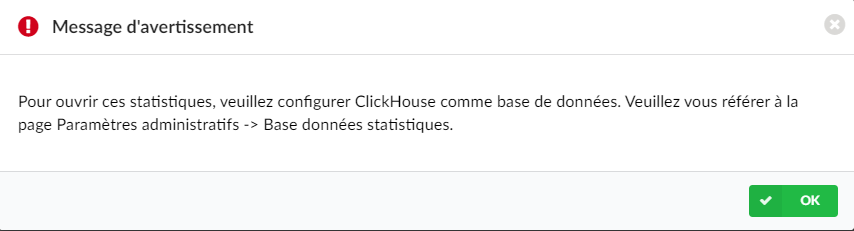
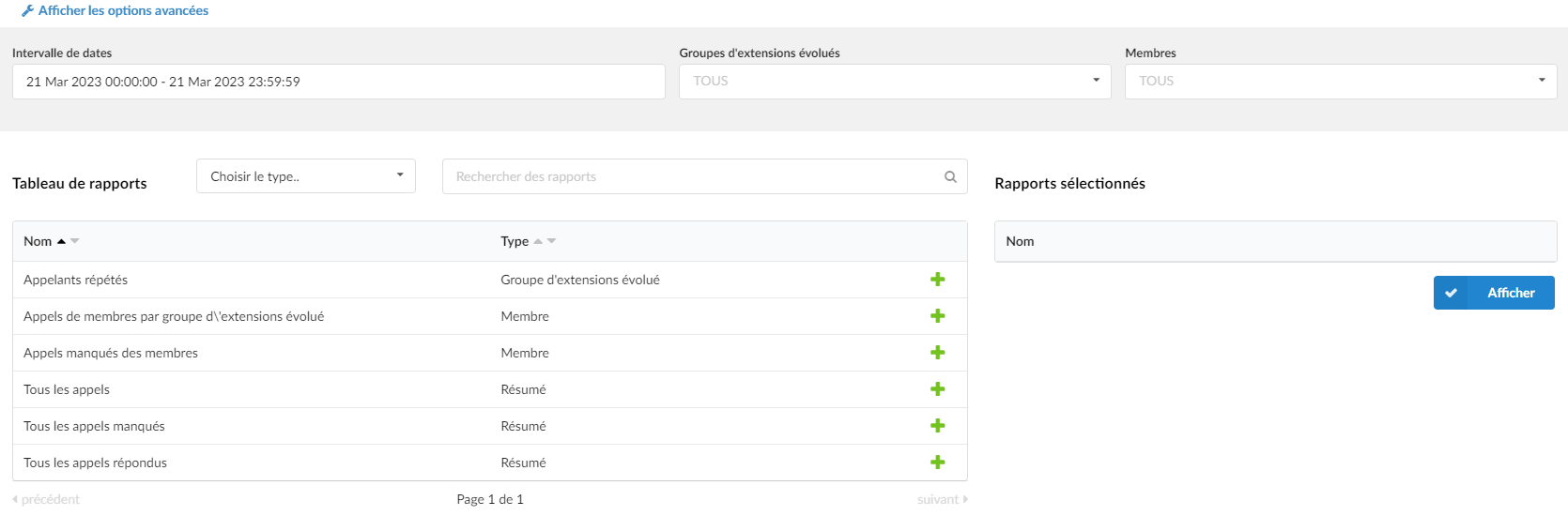
Users can filter the data using the following filters:
Date range
Select a specific period and generate data accordingly
Enhanced extension group
Enter the name of the enhanced extension group
Members
Enter the specific member
Call duration
Set a specific call duration
Hold duration
Set a specific wait duration
Caller
Data search by the caller
Time format
Set a specific time format
Users can also select a specific report type: 'Summary', 'Member' and 'Enhanced extension group'. After selecting the desired type, the list of available reports will be generated respectively.
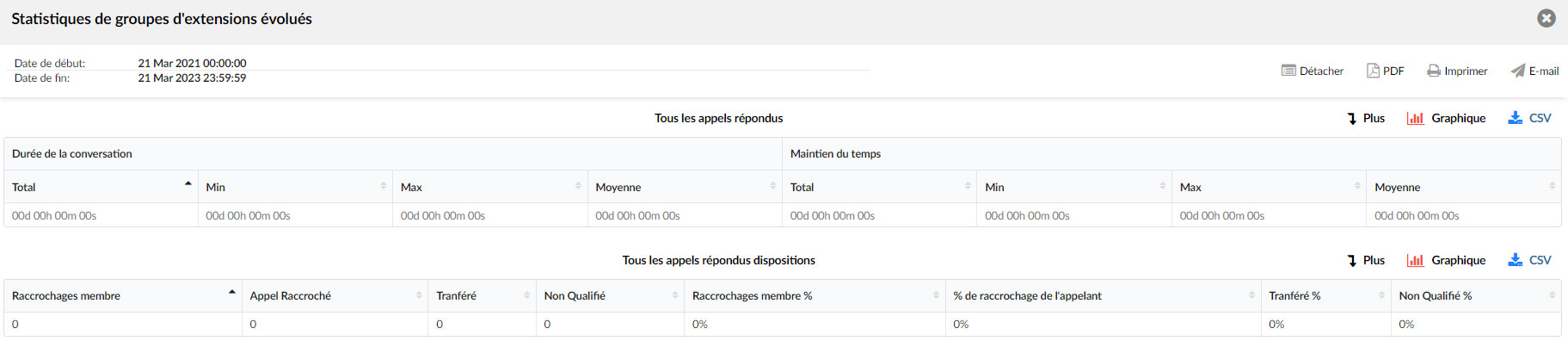
Report on all answered calls
Users can access the “All answered calls” report to obtain information about all calls on the system that were received.
Report of all calls
Users can access the “All calls” report to obtain information about all calls on the system.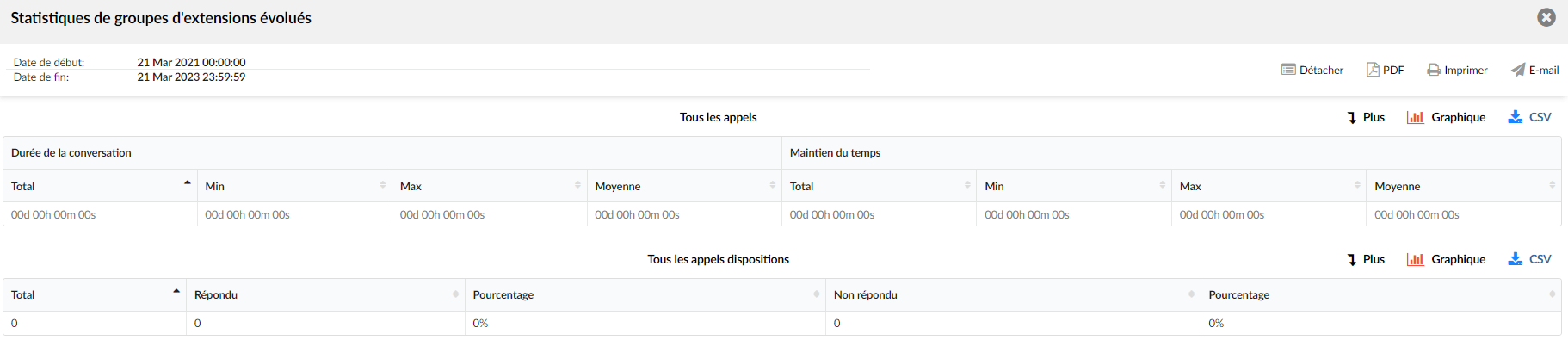
Report on all missed calls
Users can access the “All missed calls” report to obtain information about all calls on the system that went unanswered.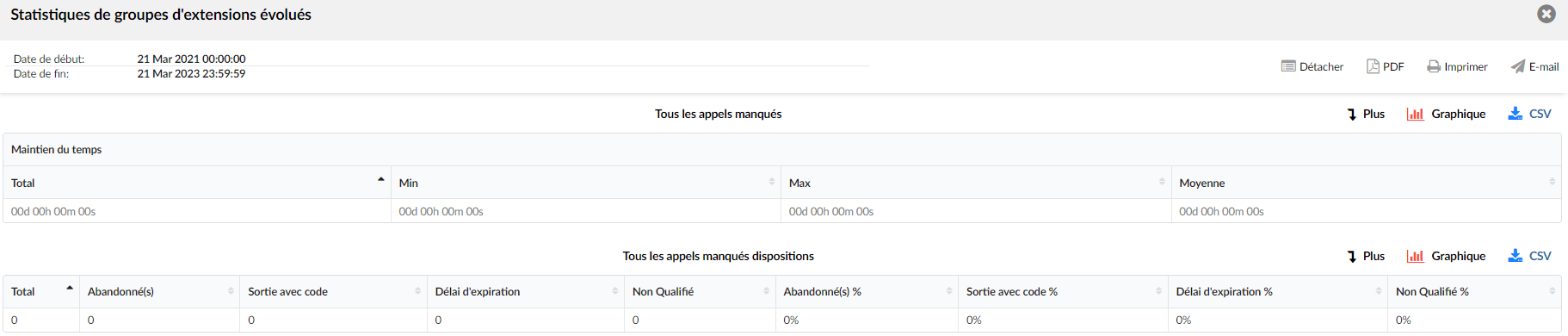
Report on member calls by enhanced extension group
Users can access the “Member calls by enhanced extension group” report to obtain information about all member calls on the system by enhanced extension group

Report on member missed calls
Users can access the “Member missed calls” report to obtain information about the missed calls of all members on the system.

Repeat callers report
Users can access the “Repeated calls” report to obtain information about the repeated calls on the system.
Recordings in the enhanced extension group statistics
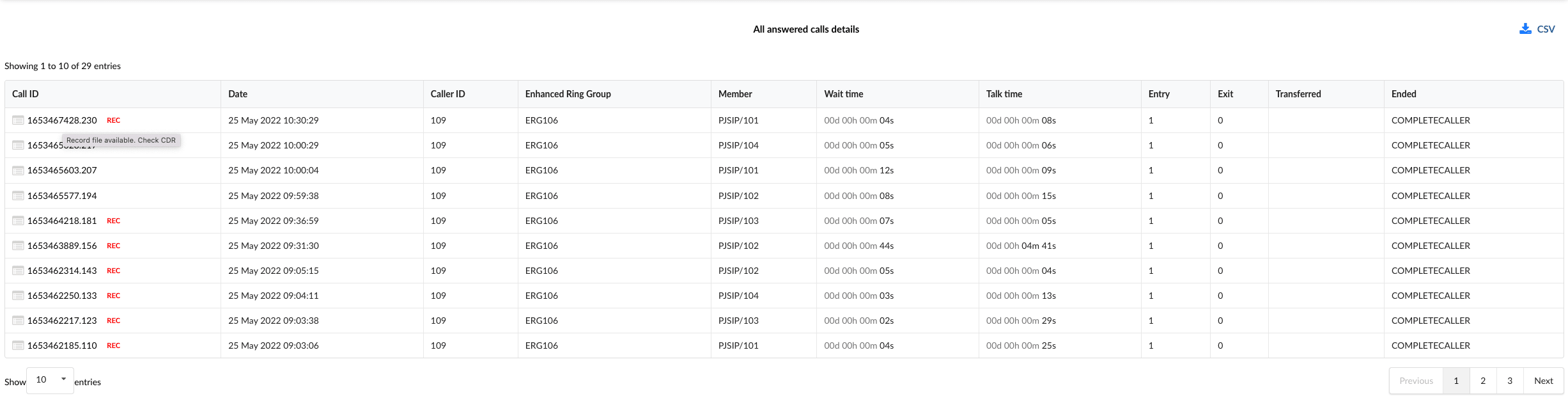
Users can now access call recordings through the enhanced extension group statistics under; All answered calls details breakdown, All answered calls dispositions breakdown, All calls breakdown, All calls dispositions breakdown, Member calls by enhanced extension group breakdown and member missed calls breakdown. This can be done by clicking on the call ID that has a mark REC next to it. The brand REC is displayed if the recording is available locally or offloaded. After clicking on the desired call ID, a new window will open and display a reports page for the call in question. The report page for isolated calls works the same way as the normal report page, which indicates whether the recording is available locally or whether the recording has been offloaded and removed from the system. If the recording is offloaded, it will display the icon representing the service used for archiving the files in the archiving feature.
The user can click on the caller ID that has a mark REC next to it, and a new window opens where a report is displayed. This is essentially a reports page for that single call, and the recording can be played for local and offloaded recordings. If the recording is still in the system, the Play button is displayed, and if the recording has already been offloaded and deleted from the system, the icon corresponding to the service used for archiving is displayed.
IVR statistics
This section gives the user an overview of the table showing the IVR statistics relating to "IVR calls", "IVR calls by DID", "IVR calls by original caller ID", "IVR calls by option".
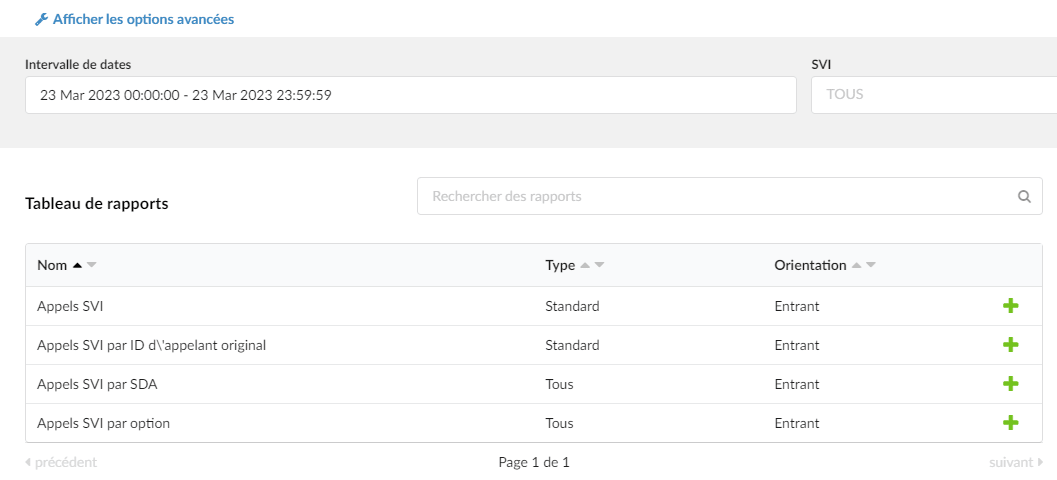
By clicking on the “Show advanced options” button, other filters are displayed:
- “Original caller ID”: Filters the data according to the original caller ID provided.
- “Caller ID”: Filters the data according to the caller ID provided
- “Destination”: Filters the data according to the chosen destination(s)
Filters
Users can filter the reports using the “Date range” and the “IVR”. The “Date range” filter can have one of the predefined ranges (“Today”, “Yesterday”, “This week”, “This month”, “Last month”, “This year”) or any other custom date range.
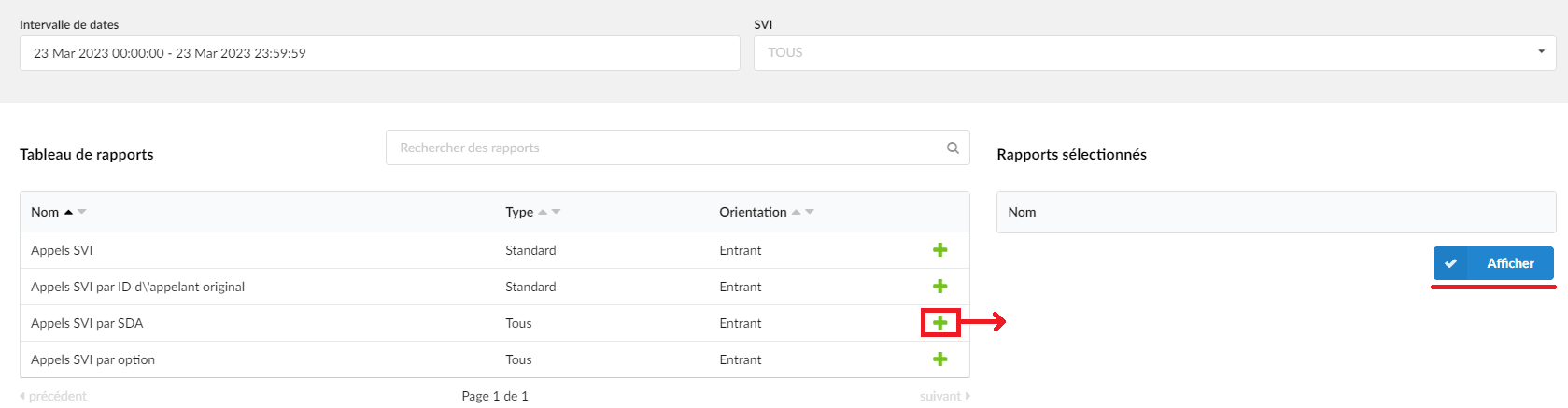
Report details
By clicking on the “Show” button, users will be prompted to go to a new page where all the additional report data and other options are displayed. By hovering the mouse over the upper left corner of the page, all the filters applied when generating the data are displayed.
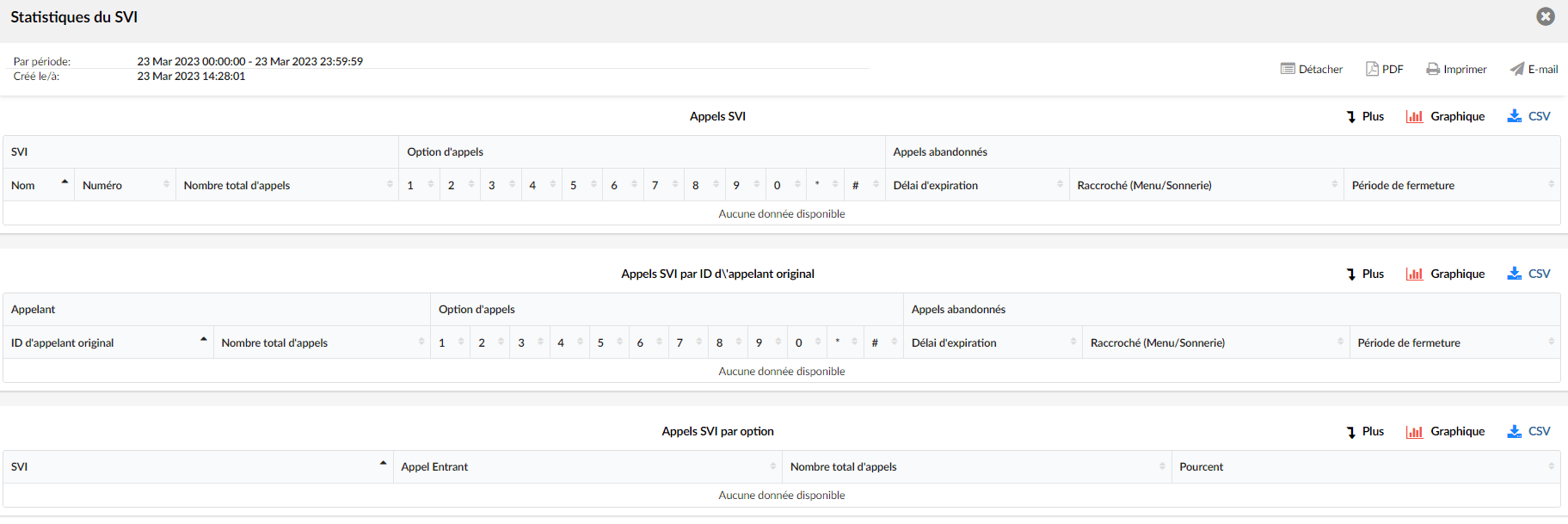
From this page, users can:
- Sort data by column.
- Search for any data in the table by typing the desired search option in the search bar, which will apply automatically.
- View charts, download CSV or PDF files, print reports and send them by email.
IVR calls
Only calls for the standard IVR type are included. It shows all calls by IVR, the number of option calls and abandoned calls for each IVR. Users can also view a timeline in the form of a graph showing the total, connected calls, and abandoned calls for all summarized IVRs, as well as a comparison of the total calls by IVR. By filtering these reports for one IVR, the graphs show the total number of calls per option and the total number of abandoned calls for that IVR only.

IVR calls by DID
This report indicates the number of calls per IVR and the call number for each incoming call or call abandoned per IVR. It presents the data for all types of IVR. The data is grouped by DID.

IVR calls by original caller ID
Only calls of the standard IVR type are included. It shows all calls by original caller ID, the number of option calls and abandoned calls for each original caller ID. Users can also view a timeline of total, connected, and abandoned calls for all original caller IDs, as well as a comparison of the total number of calls by original caller ID.

IVR calls by option
This report indicates the number of calls per IVR and the number of calls for each option or of calls abandoned per IVR. It presents data for all types of IVR.

Distributions
By clicking on the ” Breakdown ” buttons, the selected reports will appear in a new window, with more details about the IVR calls.
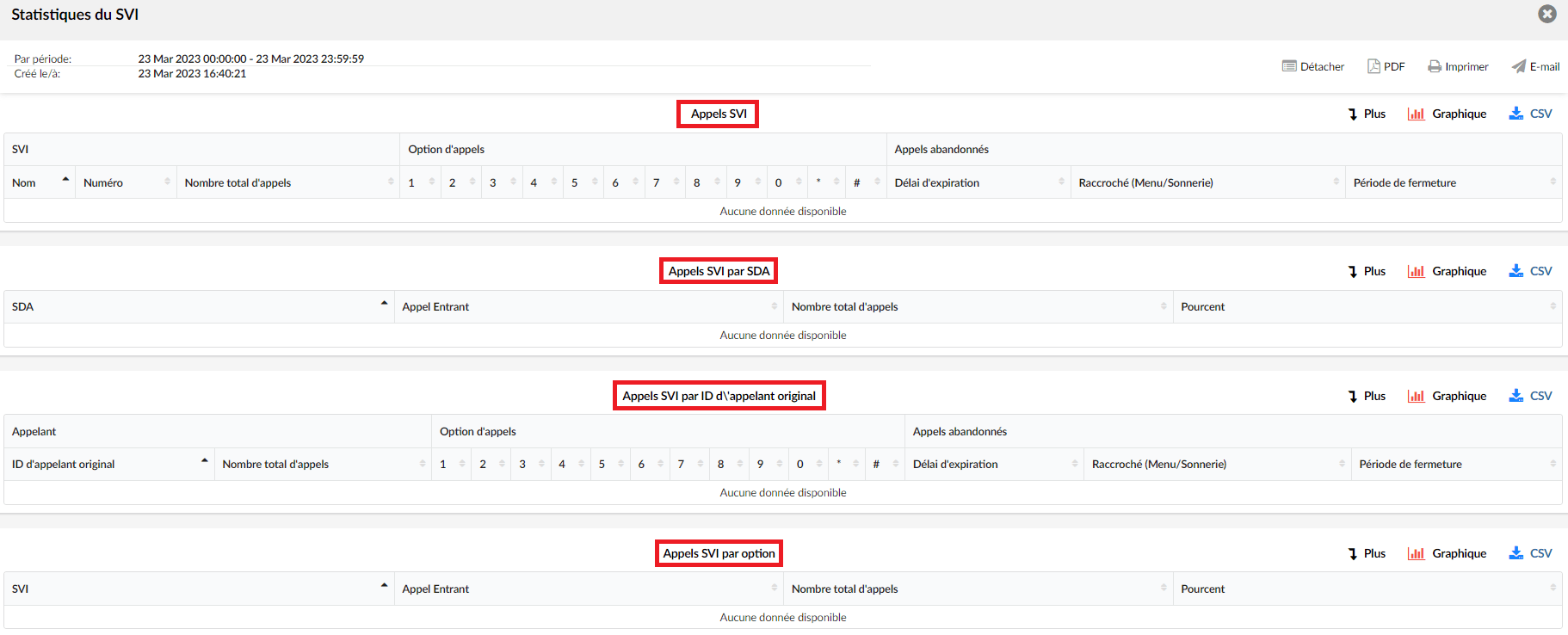
The breakdown shares a similar format for each report.
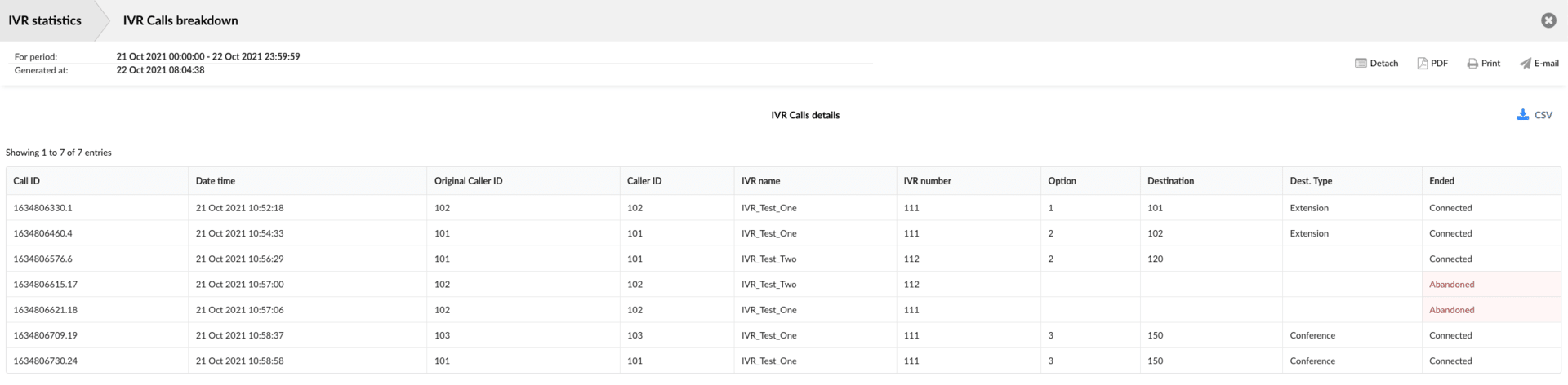
All fields are explained as follows: Field name (synonym name) – Description
Fields:
- Caller ID – Event ID
- Date and time – Date on which the event occurred
- Original caller ID – Original number of the caller who entered the IVR
- Caller ID – Caller's extension (may be the same as or different from the original caller ID)
- IVR name – Name of the IVR where the call entered
- IVR Digit – IVR number
- Option – Option number (empty for abandoned calls)
- Destination – Number of the destination where the call left the IVR (empty for abandoned calls, except in case of a timeout where the “Timeout Destination.” can be specified).
- Destination type – Destination type where the call left the IVR (empty for abandoned calls, except for timeout, where it can be specified).
- Completed – Indicates the event that occurred for the call in question.
Simultaneous calls
This section gives users an overview of the calls that occur at the same time on the same line.

Max
Maximum number of simultaneous calls in the selected intervalMedium
Average number of simultaneous calls during the selected interval
We can also use a graph that will graphically show the maximum number of calls.
Advanced
Advanced options are available for statistical reports. This section allows you to create a single statistical report that meets the user's needs.
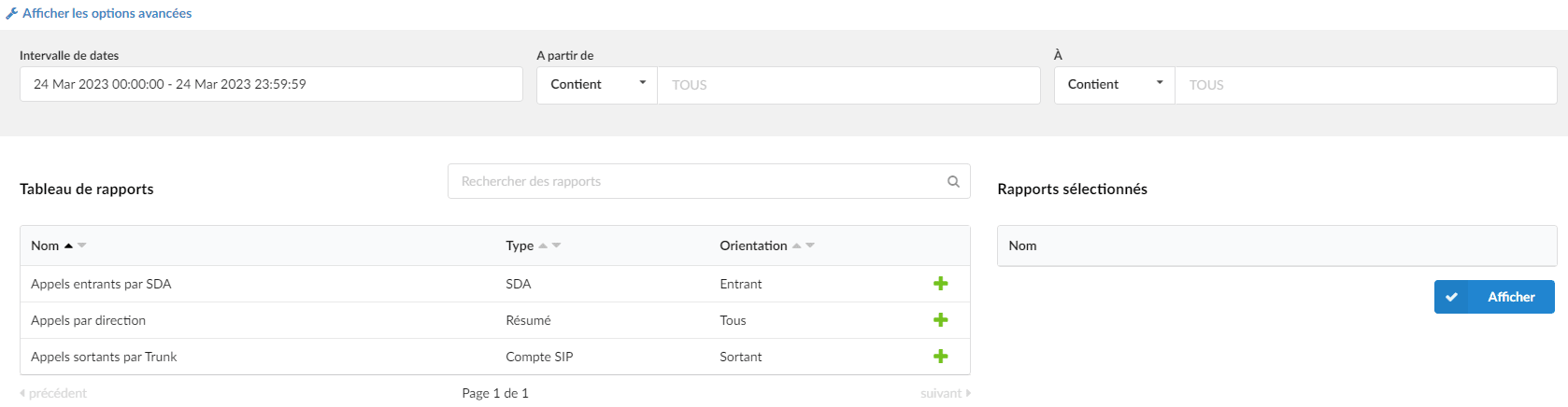
By clicking on “Show advanced options”, the search criteria will be expanded and the following items will be offered to users:
Date range:
Users have a drop-down list with the following options:
- Interval:
Select a date range by clicking on a calendar or choose the following options:- Today
- Yesterday
- The last 7 days
- The last 30 days
- This month
- Interval:
After selection, users will be presented with statistics that only cover this period.
Starting from
In this field, users must indicate the number from which the desired call is made. By default, the "ALL" modifier is present in this field, which means that statistics will be compiled for all calls on the system that took place during the selected period.
If users want to see the statistics of a few particular numbers, they must write all the desired numbers separated by commas.(For example, to display calls made from extension 104 and remote number 44207296666, the user must type "104,44207296666").
Furthermore, users have a drop-down list with the following options:
Equals
Performs statistics only for a number that is equal to the written number(s).
(For example, John sets this option to “Equals” and types the number 101. The statistics will only be displayed for calls made from the number 101).
Starts with
Produce a statistic for all numbers that start with the written digit(s).(For example, John sets this option to “Starts with” and types the number 101. Suppose John made calls from the numbers 1011 and 105. The statistics will only be displayed for calls made from numbers starting with the number 101, in this case from the numbers 101 and 1011).
Contains
Performs statistics for all numbers that contain a written number(s).
(For example, John sets this option to “Contains” and types the number 101. Suppose John made calls from the numbers 1011, 2101 and 501. The statistics will only be displayed for calls made from numbers containing the number 101, in this case from the numbers 1011 and 2101).
Ends with
Produce a statistic for all numbers that end with the written digit(s).
(For example, John sets this option to “Ends with” and types the number 101. Suppose John made calls from the numbers 1101, 2101 and 501: 1101, 2101 and 501. The statistics will only be displayed for calls made from numbers that end with the number 101, in this case from the numbers 1101 and 2101).
To
In this field, users must indicate the number to which the desired call is made. By default, the "ALL" modifier is present in this field, which means that statistics will be compiled for all calls on the system that took place during the selected period.
If users want to see the statistics of a few particular numbers, they must write all the desired numbers separated by commas.(For example, to display calls made to extension 104 and remote number 44207296666, the user must type "104,44207296666").
Furthermore, users have a drop-down list with the following options:
Equals
Performs statistics only for a number that is equal to the written number(s).
(For example, John sets this option to “Equals” and types the number 101. The statistics will only be displayed for calls made to the number 101).
Starts with
Produce a statistic for all numbers that start with the written number(s).
(For example, John sets this option to “Starts with” and types the number 101. Suppose John called the numbers 1011 and 105. The statistics will only be displayed for calls made to numbers starting with the number 101, in this case to the numbers 101 and 1011).
- Contains
Performs statistics for all numbers that contain the written number(s). - Ends with
Performs statistics for all numbers that end with the written number(s).
(For example, John sets this option to “Ends with” and types the number 101. Suppose John called the numbers 1101, 2101 and 501: 1101, 2101 and 501. The statistics will only be displayed for calls made to numbers that end with the number 101, in this case to the numbers 1101 and 2101).
- Contains
Duration
In these fields, you can define a range for the call duration in seconds.
Both fields can be modified based on the selected equality signs:- > (greater than)
- >= (greater than or equal)
- == (equal to)
- <= (less than or equal)
- < (less than)
SIP account
The user is given a drop-down list of all the trunks on the system.DID
The user is given a drop-down list of all the DIDs on the system.
Reports panel:
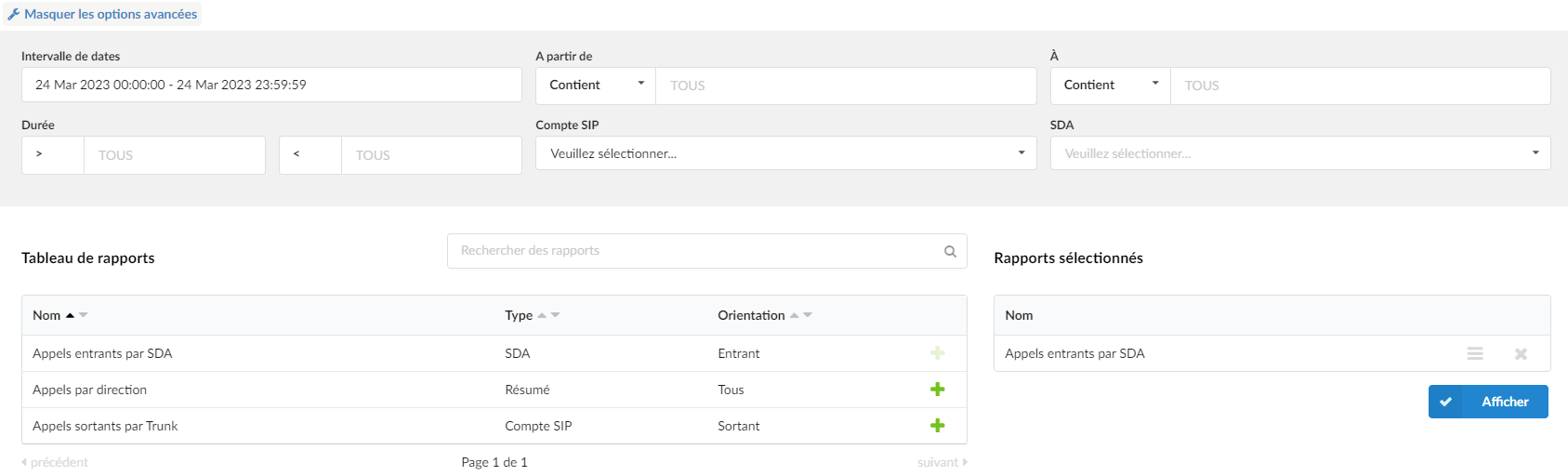
3 types of reports are available in this section:
- Outbound calls by trunk
This report indicates the duration and the number of calls (answered or not) made through a particular trunk in the selected time interval.
This report can also be represented as a pie chart, which can be modified by clicking on the colored circles above the chart. In this way, users can include or exclude the trunks they wish in the chart. - Inbound calls by DID
This report shows the duration and the number of incoming calls (answered or not) per DID.
This report can also be represented as a pie chart, which can be modified by clicking on the colored circles located above the chart. In this way, users can include or exclude the DIDs they wish in the chart. - Calls by direction
This report indicates the total number of calls (incoming and outgoing) on the system that occurred in the selected time interval.
This report can also be represented as a pie chart, which can be modified by clicking on the colored circles above the chart.
