



8. Extension groups
Extension group

Extension groups are used to group a certain number of UADs/Phones into a single destination. Each extension group is assigned a number, which once dialed, rings all the extensions assigned to the group.
Group name
Extension group name
Group number
Extension group number
When a user dials this number, all destinations assigned to the ring group will ring.
Destinations
Extension numbers assigned to an extension group
Once an extension group number is dialed, all destinations defined here ring at the same time.
Last destination
Last destination to be called if none of the destination extensions answers the call.
Add/Edit an extension group
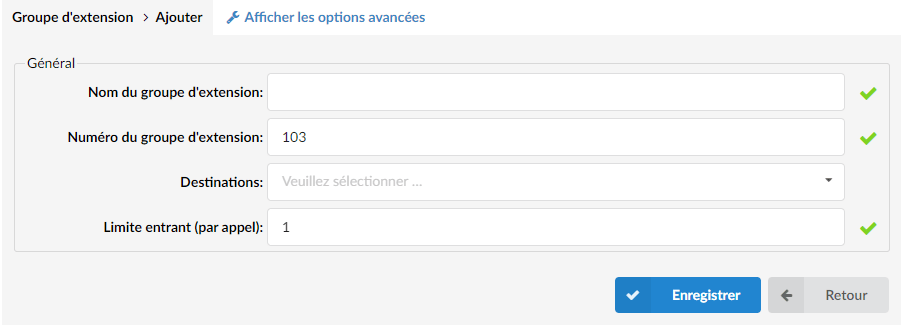
By clicking on the “Add an extension group” or “Edit” button, you access the following number group options:
Extension group name
Set an extension group name.
Extension group number
Set a number associated with the extension group.
Destinations
Extension numbers of the phones you want to associate with the extension group.
(For example, provide here a comma-separated list of extensions (for example 1001,1002,1003…). When an “Extension” group number is dialed, all extensions defined here will ring at the same time).
Advanced options
These options allow you to fine-tune the pickup group settings with additional options.
General
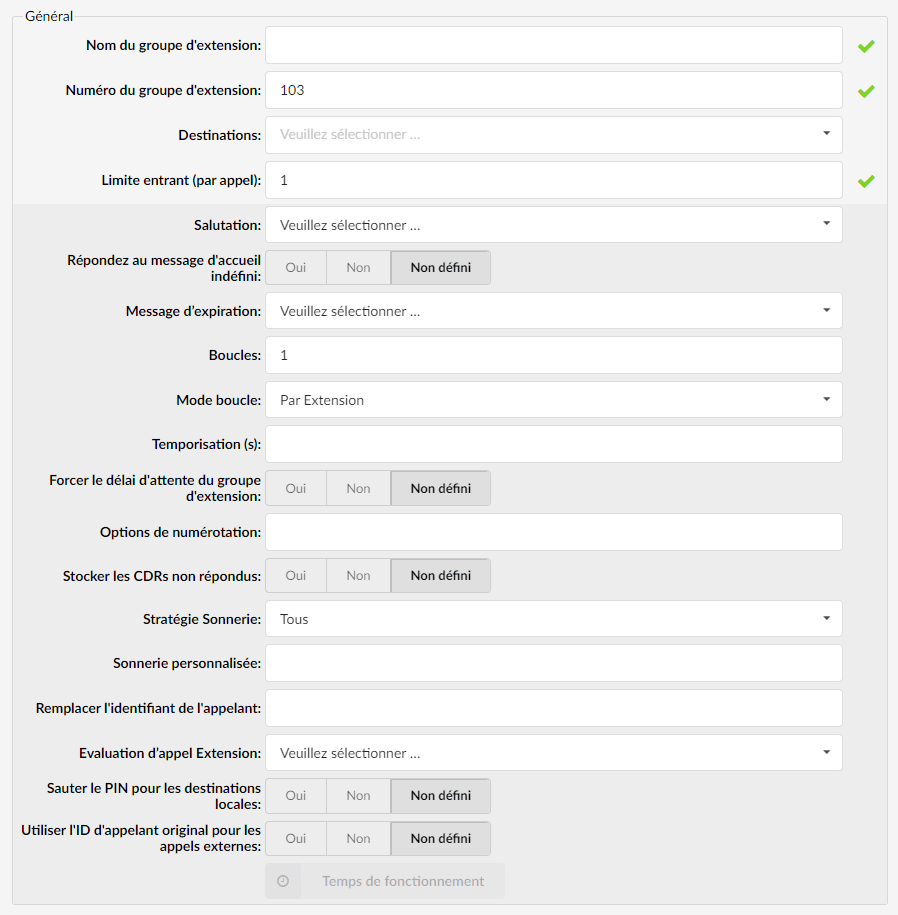
Greeting
Greeting audio file played to callers when the extension group is called.
(For example, by selecting “greeting-default-attendant”, any user who calls this extension group will hear this sound file before all extensions in the extension group are called).
Reply to the undefined greeting
If this option is enabled, the extension group will not answer until the appropriate greeting has been selected.
Expiration message
Audio file played to the caller if their call is not answered by any of the extensions in the extension group.
Loops
How many times should all extensions be dialed again if no one answers?
(For example, John dials a group number 1000, but no one answers his call. If this option is set to “2”, all extensions will be called once more before transferring the call to the “last destination”).
Loop mode
Set the loop mode for extension groups by selecting one of the following options:
- By extension: an extension rings several times before the next one starts ringing.
- Circular: an extension rings once before the next one starts ringing.
(For example, extension group 1000 has three extensions (101, 102 and 103).
1.First scenario:
- Loops: set to 3
- Loop mode: set to "By Extension"
- Timeout (s): set to « 7 ».
- Ring strategy: set to “Available extension”
In this scenario, the extension group will ring the extensions respectively and multiple times. This means that extension 101 will ring for 7 seconds, if the call remains unanswered, the extension group will ring extension 101 again for 7 seconds. If the call remains unanswered for the second and third time, the extension group will ring the next extension, 102, and so on.
2. Second scenario:
- Loops: set to 3
- Loop mode: set to "Circular"
- Timeout (s): set to « 7 ».
- Ring strategy: set to “Available extension”
In this scenario, the extension group will ring the extensions respectively and once. This means that extension 101 will ring for 7 seconds, if the call is unanswered, the same will be repeated for 102 and 103. In this case, no one answered the call in the first loop, the call will enter a second loop and three Extensions will again be dialed in the same way).
Timeout (s)
For how many seconds will all the extensions in the dialing group ring before the call is considered unanswered?
(For example, if this option is set to 20, all extensions will ring for 20 seconds before the timeout elapses. Depending on what is defined in the "Loops" field, all extensions will ring again or the call will be transferred to the "last destination").
Force the extension group timeout
If set to “Yes”, the extension group timeout will take priority over the extension timeout.
Dialing options
Additional call options assigned to an extension group
(For example, to play music to callers of the extension group, set this field to the value 'm($CLASS)', where m = music on hold class, for example m('default'). Please check the details at the bottom of the page).
Store unanswered CDRs
An option to exclude unanswered CDR records from a report.
If the option is set to “No”, the following are modified:
- The call was not answered/canceled: Instead of 2 CDRs generated per extension in the extension group, a single CDR will be stored.
- The call was answered: Instead of 2 CDRs generated per extension in the dial group, a total of 2 CDRs will be generated (one for the call to the extension group and one for the extension that answered).
Ring strategy
This option sets how the extensions in the extension group will ring.
Available options:
- All – Ring all extensions in the group
- Least Recent – Ring the extension with the fewest handled calls
- Available extension – Call each available extension
- Round-Robin – Like a rotation, except that it remembers where the last round left off.
Recording in progress

Call recording
Enable the call recording service
(For example, select "Yes" to activate the service. All incoming/outgoing calls will be recorded. If you use call recording with many extensions, check the server disk space from time to time. Please see the bitrate table below).
Silent
Define whether call recordings should be announced to the parties in a conversation.
(For example, if Silent=No, callers will hear a message "Recorded" or "This call is recorded" before their conversation begins).
Disk space used by call recording
With a continuous tone for 60 seconds
- wav49 = 84.5 kb
- wav = 833.0 kb
- gsm = 85.0 kb
With a continuous silent tone (no sound) for 60 seconds
- wav49 = 84.0 kb
- wav = 827.0 kb
- gsm = 84.0 kb
Exit digit

Exit digit
Exit digits that transfer the call to the “Exit Destination”.
(For example, John dials the extension group number 1000. While all extensions are ringing, John presses the “exit digit” defined here (e.g. 9) and his call is transferred to the “exit destination”).
Output destination
The PBXware MT extension to which the call is transferred once the user has dialed the 'Exit digit'.
(For example, John dials the extension group number 1000. While all extensions are ringing, John presses the “exit digit” and his call is transferred to the “exit destination” provided here (for example, 2001)).
Last destination

Last destination
Last destination to dial if none of the extensions in the ring group answers the call.
(For example, John dials the extension group number 1000, but no one answers his call. The sound file selected under “Announcement” is played to John and his call is transferred to the extension number defined here).
Last Destination is voicemail
Choose whether you want calls to be redirected to the last destination (another extension) or whether you want to set the voicemail as the last destination.
Incoming call confirmation

Confirm the call
Choose whether the number called in the extension group list should be prompted to accept or reject the call from the selection group.
Confirmation message
Choose to play the default or custom system audio file that is presented to the user when they accept a call from an extension group, but the call has already been answered by someone else.
Enhanced extension groups
Enhanced extension groups are more advanced extension groups in PBXware that offer basic queuing features. They reuse queues with members to achieve better business intelligence. New reporting systems have been put in place with cutting-edge options for a better reporting experience.

Name
Enhanced extension group name.
Number
Enhanced extension group number.
Strategy
Strategy of the enhanced extensions group.
Members
Number of members in the enhanced ring group.
Enhanced call groups represent a more advanced type of call group.
With these groups, users can now set up basic queuing functions and reuse queues with members to obtain better business intelligence.
These groups represent a basic version of a queue that allows users to place an extension in it, which allows users to have their mobile devices within that ERG.
Add/Edit an enhanced extension group
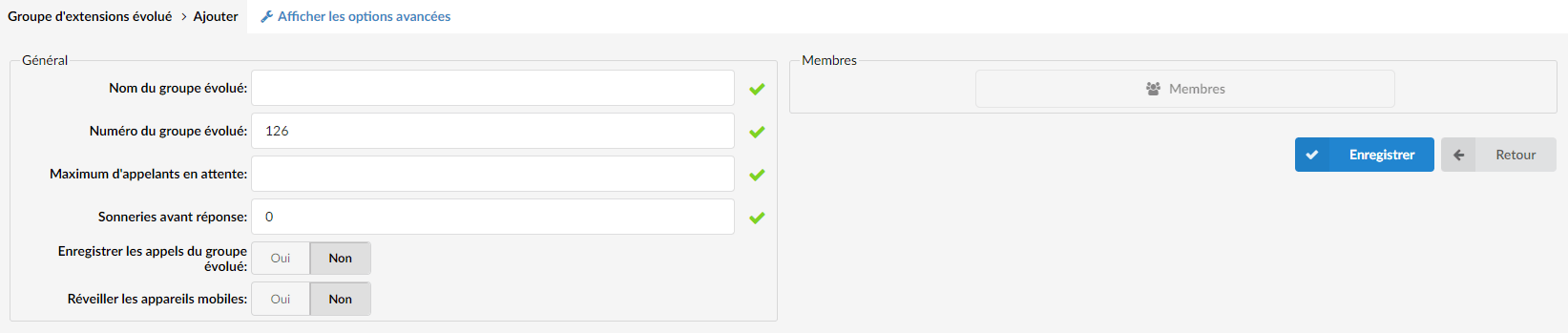
Enhanced extension group name
Set an enhanced ring group name.
Enhanced extension group number
Set an enhanced ring group number.
Maximum callers waiting
Maximum number of callers allowed to wait in an enhanced ring group at the same time. This number should be set according to the number of members who answer calls for the enhanced ring group.
(For example, if this field is set to 4, only 4 callers will be allowed to enter the enhanced extension group. If caller number 5 tries to enter the enhanced extension group, they will be transferred to the <%PRODUCT%> 'Redirect Destination' number).
Ring to Answer
How many rings will be played to a caller before the call enters the enhanced ring group.
Set this value to 0 if you want calls to hear the enhanced extension group's music on hold as soon as the call is connected.
Record enhanced group calls
Define whether the enhanced ring group calls should be recorded or not.
Members
Clicking the “Members” button opens the “Members” pop-up window in which users can select one or more members and add them to the enhanced extension group.
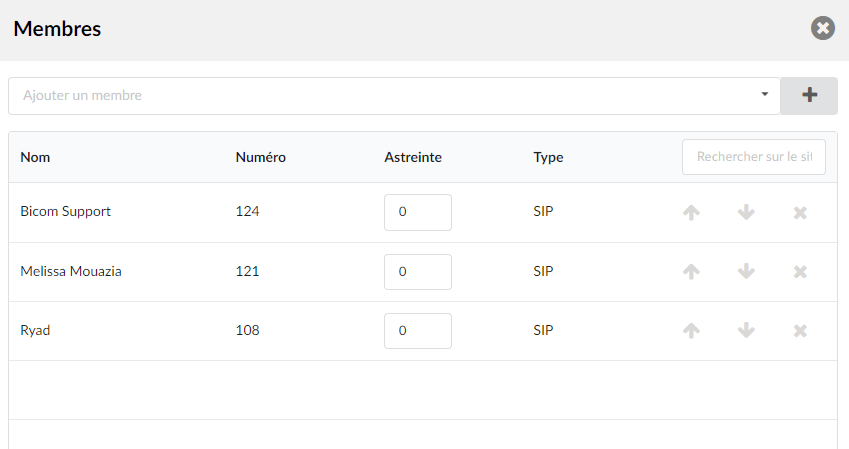
Click the button + to add the selected members.
The table shows the members of the enhanced extension group with the following details:
Name
Members’ names
Number of members
Number of the extension on the system
On-call duty
This value can be set per member, so that the system can decide which priority to use when sending calls to members.
(For example, set values between 0 and 10, with 0 being the highest priority and 10 the lowest. If the strategy is set to “ringall”, then only the available members with the lowest priorities will ring.).
Type
Member type.
Search
Search for enhanced extension group members.
The arrow  moves an enhanced extension group member up one place in the list.
The arrow  moves an extension group member one rank lower in the list
The cross  allows you to remove a member.
Complete enhanced extension group

Redirect Destination
Extension number of the full redirection of the enhanced extension group
(For example, if the enhanced extension group 2000 accepts a maximum of 4 users waiting at the same time, any new user who enters the enhanced extension group 2000 will be redirected to the extension number provided here).
Redirect to voicemail
Choose whether the redirection extension is a voice mailbox.
Enhanced extension group delay
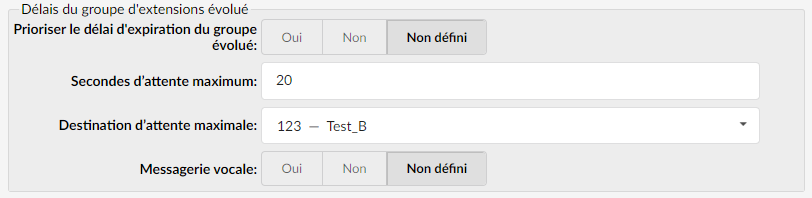
Prioritize the enhanced group timeout
Define whether to give priority to the enhanced ring group timeout or not.
Maximum wait seconds
Maximum time that a caller can wait in an enhanced extension group. Once this time is exceeded, the caller will be redirected to the “Maximum wait destination” number or callback will be activated.
(For example, user A has already been waiting 5 minutes in the enhanced extension group. If this field is set to 300 (300s = 5min), A will be redirected to the ‘Max wait destination’ or callback will be activated depending on the configuration).
Maximum wait destination
This option works with the "Maximum wait seconds" field. Select from the drop-down menu the extension to which the caller will be redirected once the time set in the "Maximum wait seconds" field is exceeded.
(For example, user A has already been waiting 5 minutes in the enhanced extension group. If the “Max wait seconds” field is set to 300 (300s = 5min) and the Max wait destination option is set, A will be redirected to this destination).
Voicemail
Sets whether the maximum wait destination points to voicemail.
Announcements of the position in the queue
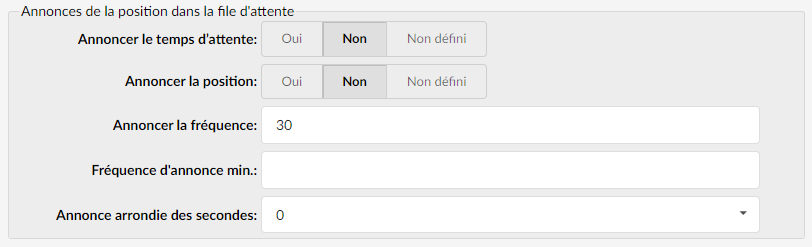 There are two types of position announcements: "position in the queue" (indicates the position of the enhanced ring group) and "periodic" (broadcasts a custom message).
Announcements of the position in the queue
Announce position
Announce frequency
Periodic announcements

Trunk announcement
Select the audio file that is played periodically to callers waiting in an enhanced extension group
(For example, record a message “Hang in there, buddy!” and set it as a periodic announcement. This message will be played to callers every “Periodic Announcement Frequency” seconds).
Members settings
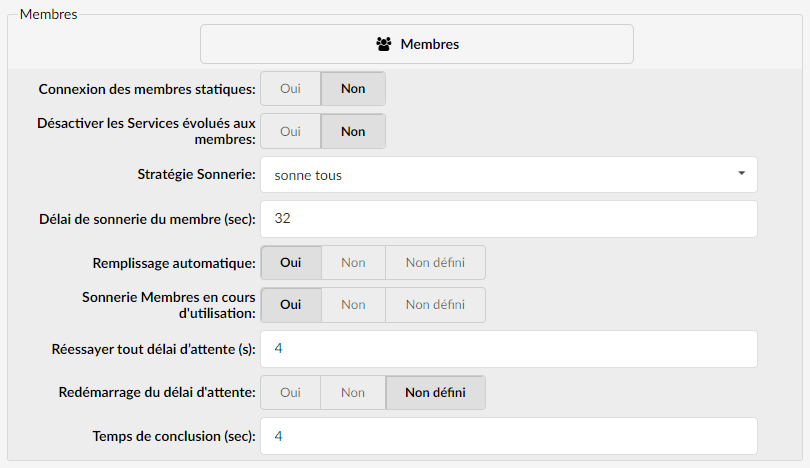
Static member login
Select whether you want to enable static member login.
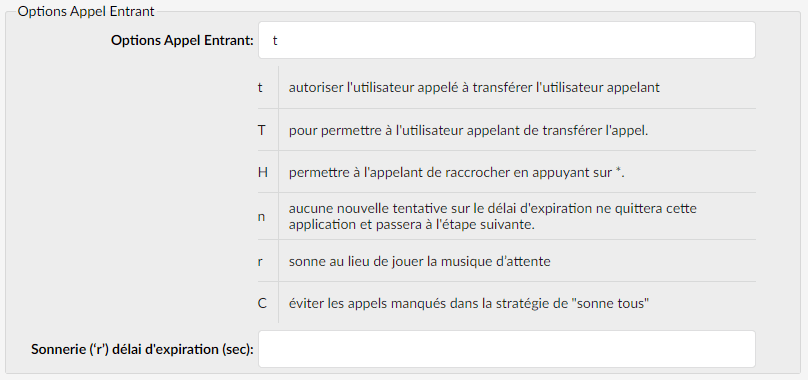
Inbound Call Options
Sets the advanced call options for the enhanced extension group.
Here is the list of available options:
Exit digit
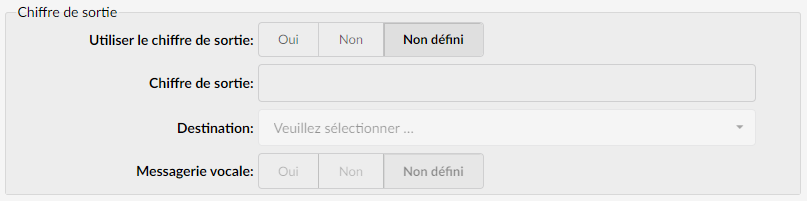
Use exit digit
Users should be able to leave the enhanced extension group by dialing a single digit and be automatically redirected to a predefined PBXware destination.
Example:
John enters the enhanced ring group. A welcome message explains that the user can leave the enhanced ring group by pressing the digit defined in the "Exit digit" option, and be transferred directly to the operator or another destination (defined in the "Destination" option).
Exit digit
Set the exit digit here. Once this digit is dialed by the user waiting in the enhanced ring group, the call will be transferred directly to the defined "Destination".
Example:
John enters the enhanced ring group. The welcome message explains that the user can leave the enhanced ring group by pressing the digit defined here (for example, 9) and is transferred directly to the operator or another destination (defined in the "Destination" option).
Enable callback
Choose whether the callback should be enabled on the exit digit.
Destination
Destination number of the local PBXware that is dialed once the "Outbound Digit" is dialed.
(For example, John enters the enhanced extension group. The greeting explains that the user can leave the enhanced extension group by pressing the digit defined in the “Exit digit” option, and be transferred directly to the PBXware destination defined here).
Voicemail
Define whether the exit digit destination points to voicemail.
Abandoned call notices

Here, you can define whether there will be a notification when the call within an enhanced extension group is dropped.
Enable the notification bar
Enable or disable the abandoned call notification feature.
Notification email address
The email address that will receive abandoned call notifications, an abandoned call being a call where the caller hangs up while waiting for an answer.
