



13. Voicemail
PBXware voicemail is an advanced telephone answering machine. Although each extension is equipped with a voice mailbox, voice mailboxes can also be created independently from this location.
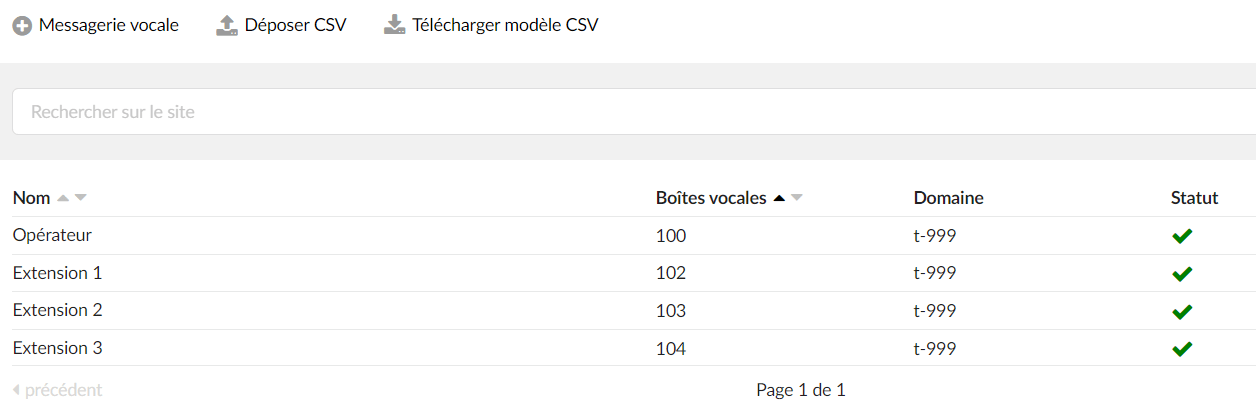
This screen lists all the system's voicemail boxes with the following details:
Name:
Full name of the voicemail box user name/extension.
Voicemails:
Voicemail extension number.
Domain:
Voice domain/context to which the mailbox belongs.
Status
Voicemail status.
Search

This option allows you to search for and find the desired inboxes in a short amount of time.
By clicking on the “Search” field, users will have the ability to enter a search phrase.
The search can be performed by entering:
- Extension name
- Extension / Mailbox number
- The extension's email address
Drop a CSV
This option allows users to quickly add a number of inboxes. The segments of the .csv file must be separated by commas and in the following order: Inbox number, name, PIN, Email.
Download the CSV template
This option gives users the ability to download the CSV file template, which makes creating a number of inboxes even faster and easier.
Add/Edit a voicemail
General
By clicking on ” Add voicemail/Edit voicemail”, you access the voicemail box screen shown below.
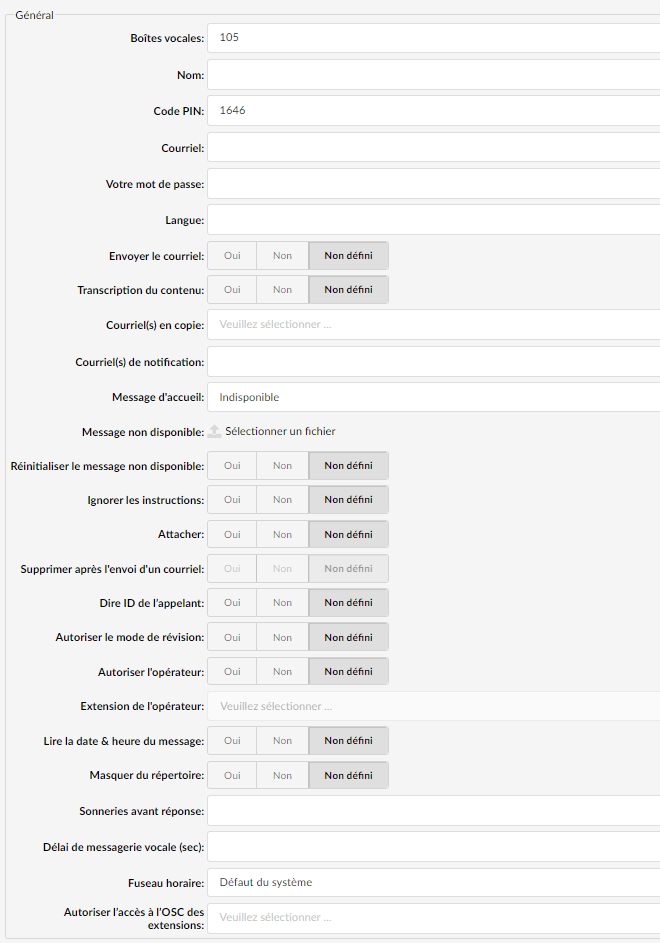
Voicemails:
Unique extension number of the network voicemail.
(For example, set this field to 5001, for instance. Now, to access this voicemail box, simply dial 5001 from any PBXware extension).
Name:
Full name of the voicemail box owner.
Domain:
Domain/Context to which this voicemail belongs.
(For example, this is an advanced feature. Leave this field at the “default” value unless you know what you are doing).
PIN code:
Four-digit number used for voicemail authentication.
(For example, each voicemail box has a unique PIN. In order to log in to your voicemail, provide this number when the operator asks for it, for example 1947).
Email:
Email address associated with the voice mailbox. This email is used for new voicemail notifications and audio file attachments.
(For example, if the option 'john@domain.com' is set here, as soon as this voicemail receives a new message, a notification and the attached voice message (depending on whether this option is enabled or not) will be sent to this email address).
Your password:
This password will be used to connect to the OSC voicemail.
The password must meet the following criteria:
– At least 8 characters
– At least 1 uppercase letter
– At least 1 lowercase letter
– At least 1 digit
– At least 1 special character ( ! % * _ -)
The allowed characters are: a-z, A-Z, 0-9, ! % * _ -.Language:
If you have installed sound files in an additional language on the system, you can choose another language to use for the voicemail-related sound files.
(For example, if you have installed French files in the sounds/fr folder, put 'fr' here to play the sound files in French when answering voicemail).
Send the email:
Whether or not to send an email to the address indicated above.
Content transcription:
Voicemail transcription is a service that converts audio voicemail messages into text format, which is then sent to the user by email or text message. This service is sometimes called "speech to text", "voice to text", or "voicemail to text".
Email(s) in copy:
Add additional email addresses to which you want the voicemail inbox to be associated.
Notification email(s):
Enter the notification email here.
(For example, if the parameter 'john@pager.com' is set here, as soon as this inbox receives a new message, a notification is sent to this notification email address).
Greeting message:
Greeting message played to users before they are transferred to the voicemail box to leave a message.
(For example, the voicemail user can choose between a “busy” and “unavailable” message).
Message unavailable:
Upload the custom unavailable message. The unavailable message supports files: WAV, wav, and gsm files only.
(For example, if the default unavailable message does not meet your needs, click the "Select a file" button, upload a custom message and select it under "greeting message").
Skip the instructions:
Skip the instructions telling users how to leave a voice message.
(For example, when the caller reaches the voicemail box, instructions on how to leave a voice message are played. We encourage you to keep this option set to “Yes” permanently).
Attach:
Whether the voicemail should be attached and sent with the notification email.
(For example, a caller leaves a voice message for John. If this option is set to "Yes", the email that informs John of the voice message also contains this voice message, so that John can listen to it without having to log in to his voicemail).
Delete after sending an email:
Whether the voicemail sound file should be deleted from the file system after sending it as an attachment to the user’s email address.
(For example, the caller leaves a voice message for John. If this option is set to “Yes”, the voice message will be deleted after being sent as an attachment to John's email address).
Call notifications
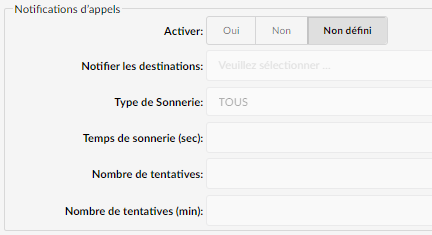
Enable:
Whether this specific inbox should use call notifications or not.
Groups
Voicemail groups are used to group voicemail inboxes. When a voicemail is left for group 2002, for example, all destinations that belong to this voicemail group will receive the same voicemail. This screen lists all the voicemail groups in the system with the following details:

Group name:
Name/identifier of the voicemail group
Group number:
Voicemail group number. Once dialed, the voice message will be left to all voicemail "Destinations" of this group.
Inboxes:
Number of mailboxes assigned to a voicemail group.
Add/Edit a voicemail group
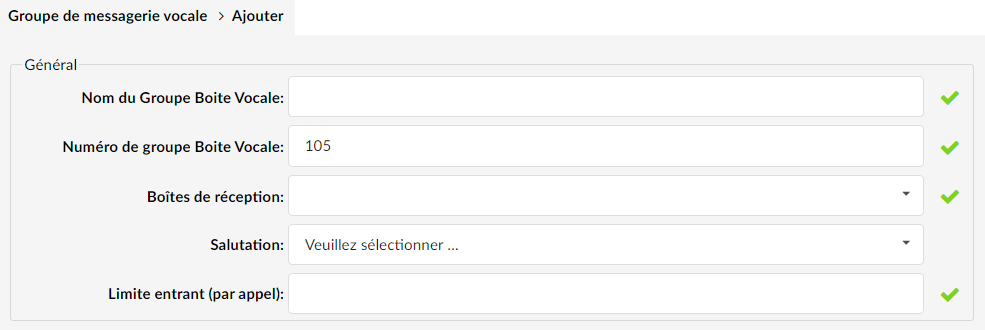
Voicemail box group name:
Voicemail box network name.
Voicemail group number:
Voicemail group number.
To leave a message for this shared voicemail, callers will need to dial the extension number defined here, for example 2002).- Inboxes:
A list of mailboxes that belong to this voicemail group is defined here.
To assign extensions to this voicemail group, indicate their extension numbers here separated by a comma ‘,’. For example, 1001,1002,1003…) Greeting:
The greeting message that is played when calling this voicemail group.
Messages
This section gives users an overview of all their voicemail messages. Users must first select the desired voicemail box, then the voicemail messages it contains will be presented to them.

The following information is given:
Checkbox
The checkbox allows users to choose which voicemail they wish to work with. It is possible to choose one, several or all of the voicemail messages.
After choosing, users can manipulate the voicemail messages with the following options that are located above the voicemail message list:
- Move
- Transfer
- Listen
- Download
- Delete
MSG
Gives users information about the position of the voicemail in the mailbox. The lower the number, the older it is.
Caller
Information about the caller. If the caller has set the caller ID, users will see “Caller<Extension number>”. If the caller ID is not set, the user will see “Extension name <Extension number>”.
Date
Date and time at which the voicemail message was sent.
Searches the voicemail
Voicemail box name
By clicking on this field, the drop-down menu will be presented to users to allow them to decide which mailbox they want to see. Users will only see the voicemail messages that belong to the chosen mailbox.

Inbox
This field allows users to search voicemail messages by folder in the mailboxes.

Voicemail options
After selecting the desired voicemail messages, users have the option to manipulate them using the following options:

Move
Moves voicemail messages to the desired folder. This option allows for faster searching and a better-organized voicemail box.Transferred
Transfer of voicemail messages to another extension. After selecting the voicemail and clicking Transfer, users are prompted to enter the extension number to which they want to transfer a voicemail message.Download
After selecting the voicemail, click here to download the recording.Delete
After selecting the voicemail, click here to delete the recording.
