23. Service plans

The service plan defines the call rating details for all available destinations, but it also allows you to create a template for enhanced services, destinations and online supervisor settings that will be automatically applied to the extensions associated with this service plan.
NOTE:
Home screen

Add/edit a service package
These options allow you to fine-tune the service plan with details such as the minimum rate and the connection rate, the grace period, and the included minutes.
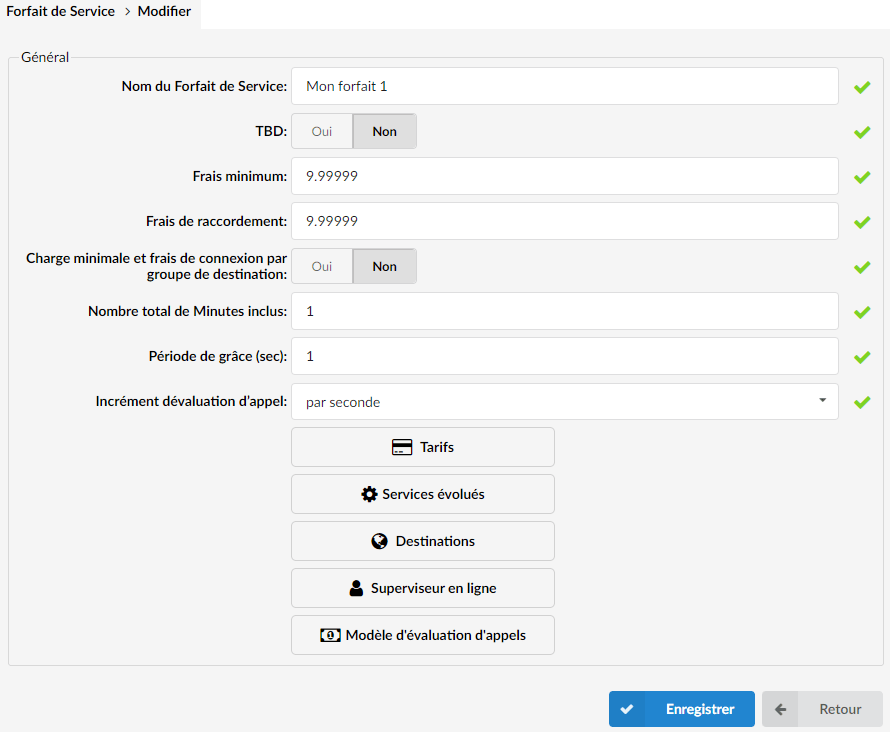
- Service plan name
Enter the name of the service plan
- TBD
Allows you to apply time-based dialing to the current service plan
Time-based dialing is used when users want to charge calls differently depending on the time period. For example, users can set different prices for mornings or weekends, etc.
- Minimum charge
The minimum charge is applied to each call made, regardless of the duration of the call.
If a call is made, regardless of its duration, this "minimum rate" will be applied.
NOTE:
If the “grace period” is set, the “minimum rate” will be applied after the grace period expires.
- Connection charge:
Tax applied to any call that leaves the system (only if the other party answers).
(For example, if the connection charge is set to 0.4, each call that leaves the system will be billed at this amount after the other party has answered the call).
NOTE:
If both the “Connection Fee” and “Minimum Fee” settings are defined, the sum of these two settings will be charged after the other party answers the call. This sum will not be charged immediately if the “grace period” is enabled.
- Minimum charge and connection fee per destination group
If this option is set to Yes, the user can set the minimum charge and the connection charge per destination group. If this option is set to “No”, the minimum charge and the connection charge will be applied from the service plan.
- Total number of minutes included:
Total number of minutes included (free) assigned to a service plan.
(For example, if the value of this field is "5", each user extension assigned to this service plan will have 5 free (included) minutes of call time to a location to which the included minutes apply).
NOTE:
The "Minimum charge" and "Connection charge" will be applied if they are defined.
- Grace period
Sets the number of seconds during which short calls will not be billed.
(For example, if the grace period is set to 10, all calls that last 10 seconds or less will not be billed. Note that calls that last more than 10 seconds will be billed).
- Call rating increment
Call pricing type (per second, 6/6, 30/6, 30/30, 30/60, per minute).
Select the call billing mode. The first digit indicates the number of seconds that will be billed immediately after the start of a call; the second digit indicates the rate at which the call will be billed after the time of the first digit expires.
(For example, if "30/6" is selected and you made a call that lasted 12 seconds, it will be billed as if you made a 30-second call. If the call lasted 39 seconds, it will be billed as if it lasted 42 seconds (30 + 6 + 6 = 42)).
Rates
By clicking on the button
the Rates window opens.

NOTE:
Depending on the routing mode, which is set in Server > General settings > Routing mode, the "Rates" section is slightly different if the routing mode is set to E.164 routing than when it is set to simple routing.
If E164 routing is selected

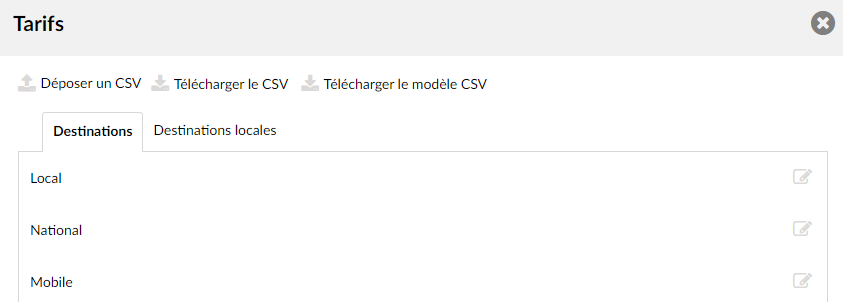
- Drop/upload a CSV
The rates for destination groups can be easily downloaded from the server. Update the .CSV file on your desktop, click the “Browse” button, select the file and click the “Download” button.
TIP:
To download the rates file from the server, simply click the button Download CSV.
- Download the CSV template
Here, you can download the CSV template which already contains the necessary headers that can help you create a CSV file more easily.
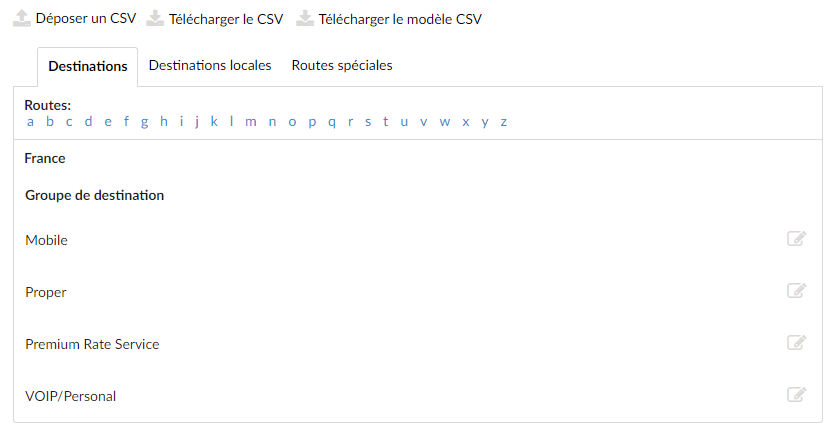
- Routes
Click a letter under the section Routes, “A” for example, and select “Australia”. A list of Destination groups is displayed under Destination group. Click the button Edit to modify the charges of destination groups.
TIP:
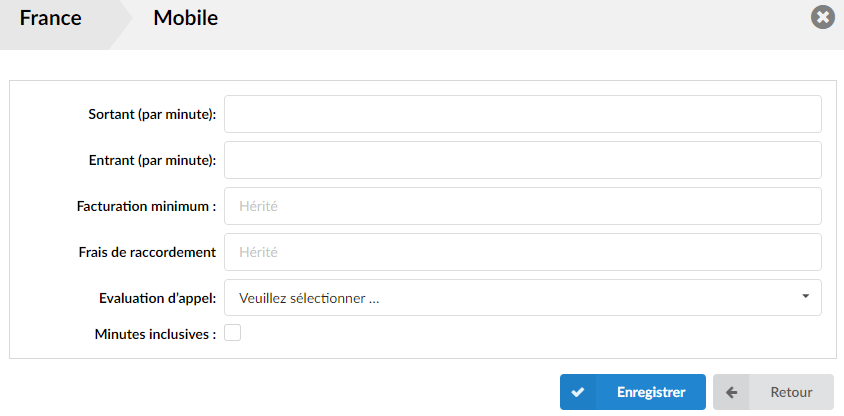
- Outbound (per minute)
Outbound charges of the destination group.
(For example, if you modify the destination group "Mobile" and set this option to 5.00000, this rate will be applied to all calls made to the Mobile destination).
- Inbound (per minute)
Inbound charges of the destination group.
(For example, if you modify the destination group "Mobile" and set this option to 5.00000, this rate will be applied to all calls made to the "Mobile" destination).
- Minimum billing
Minimum charge for this destination group.
In the event of a call, whatever its duration, this “minimum charge” will be applied.
- Connection charge
Connection charge for this destination group. It applies to a call that leaves the system (only if the other party answers).
- Call rating
Select the call rating type for this destination.
The first number corresponds to the number of seconds that will be billed immediately after the start of a call, the second number corresponds to the rate at which the call will be billed after the time from the first number has expired.
(For example, if "30/6" is selected and you made the call that lasted 12 seconds, it will be billed as if you made a 30-second call. If the call lasted 39 seconds - it will be billed as if the call lasted 42 seconds (30 + 6 + 6 = 42).)
- Inclusive minutes
Whether or not to count the flat-rate minutes for this destination
If simple routing is selected
All fields are more or less the same as for E.164 routing. The only difference is that the CSV file format should now be: (“Route name”, “Outbound”, “Inbound”, “Inclusive minutes”, “Billing”, “Minimum charge”, “Connection charge”).
Advanced services
By clicking on the button

the Enhanced services window opens.

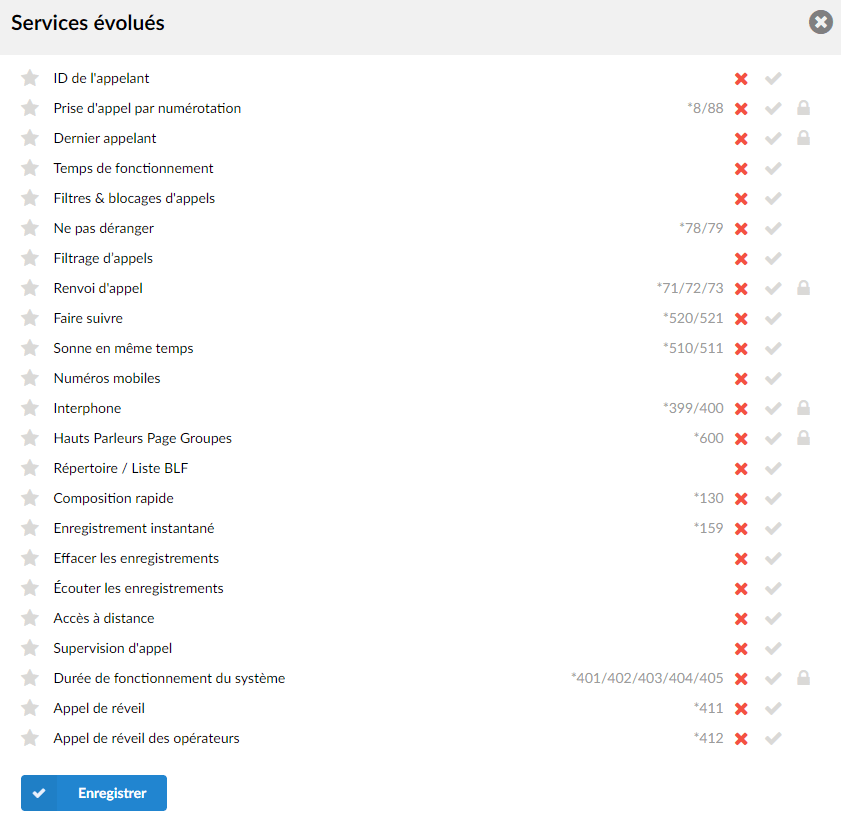
The enhanced services defined here will be applied to all users assigned to this service plan. For example, if a service plan is configured to have only the Call forwarding enabled, all users with the service plan will only have the service Call forwarding enabled.
To learn more about enhanced services, refer to the page Advanced services
Destinations
By clicking on the button

the Destinations window opens.

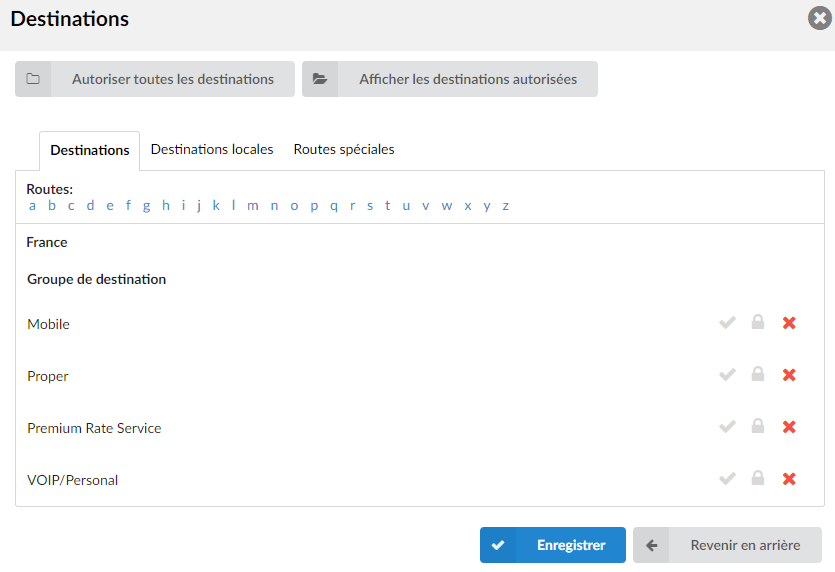
The destinations defined here will be applied to all users assigned to this service plan. This section allows users to allow or disallow certain destinations. Additionally, here users can define destinations for which a PIN will be required, so that when they call them, the user will be prompted to enter a PIN code.
For example, if the service plan is set to only allow the destination « United Kingdom: mobile », all users with this service plan will be able to call only « United Kingdom: mobile ».
- Allow all destinations
Allows all destinations for this service plan.
- Show allowed destinations
Displays all allowed destination users.
NOTE:
Destinations requiring a PIN code will not be displayed.
Supervisor online
By clicking on the button

the Enhanced services window opens.

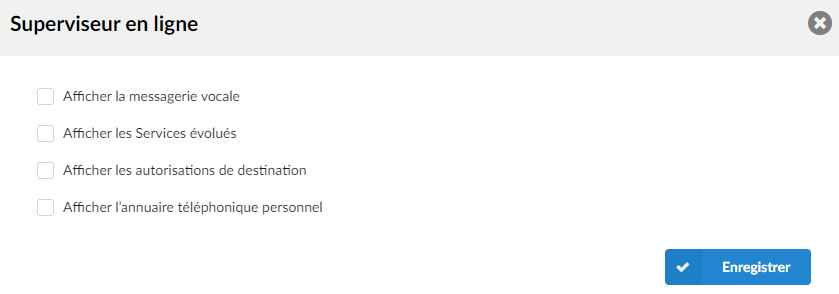
- Show voicemail
Whether or not to show the voicemail option in the online supervisor of the extensions covered by this service plan.
- Show enhanced services
Whether or not to show the enhanced services in the online supervisor of the extensions covered by this service plan.
- Show destination permissions
Whether or not to show the allowed destinations in the online supervisor of the extensions covered by this service plan.
- Show the phone directory personal
Sets whether or not to display the personal phone directory of the extensions covered by this service plan.
Call rating template
By clicking on the button
the Call Rating Template window opens.
NOTE:
The call rating template set on the service plan will be used only when users, without privileges to set and control call rating, create new extensions.
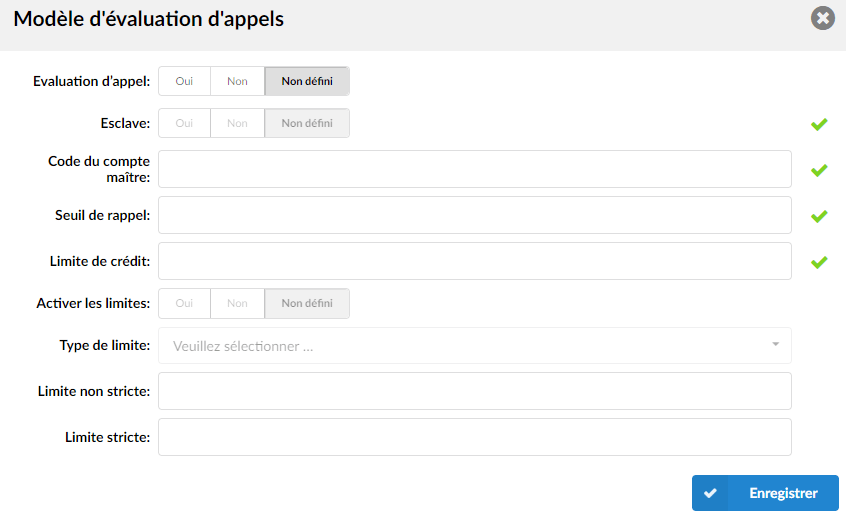
- Call rating
Whether or not to enable call rating using the template.
- Slave
Set two extensions to share the same call rating funds.
- Master account code
If the field Slave previous is set to Yes, users must enter here the main extension number from which the funds will be used.
- Callback threshold
Set the account balance amount at which a reminder should be sent to the user.
If this field is set to 10, the user will receive an email notification when the account balance reaches 10.
This option is available if the option Slave is set to No.
- Credit limit
Set the maximum amount that the system will extend to the call rating account.
If this field is set to 10 and the account balance has dropped to 0, the account will still have 10 units of funds available.
- Enable limits
Set the limits according to the limit type.
- Limit type
Set the type of limits to apply, namely Daily or Monthly.
- Non-strict limit
Depending on the Limit type, when the extension reaches a hard limit, an email will be sent to the person in charge of call rating.
(For example, set 10 here if you want an email to be sent when the user reaches this amount during the call.)
- Strict limit
Depending on the Limit type, when the extension reaches the Strict limit, the system will prevent this extension from making other calls.
(For example, set 20 here if you want the system to prevent this extension from making calls when the user reaches this amount during the call.)
Time-based dialing
Time-based dialing, or TBD (Time Based Dialing) dialing, is a feature that allows calls to be charged according to specific rules.
These rules specify the date/time at which they apply. When entering rates in service plans with time-based dialing enabled, you will be able to enter rates for each specified rule.
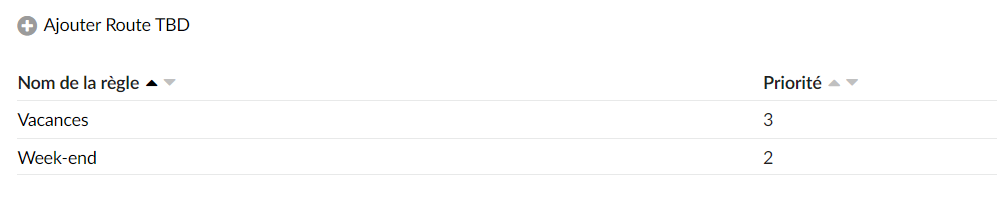
- Rule name
Rule name to be determined
- Priority
Priority of the TBD rule. The lower the number, the higher the priority.
Add a rule
These options are used to add/modify specific TBD rules.
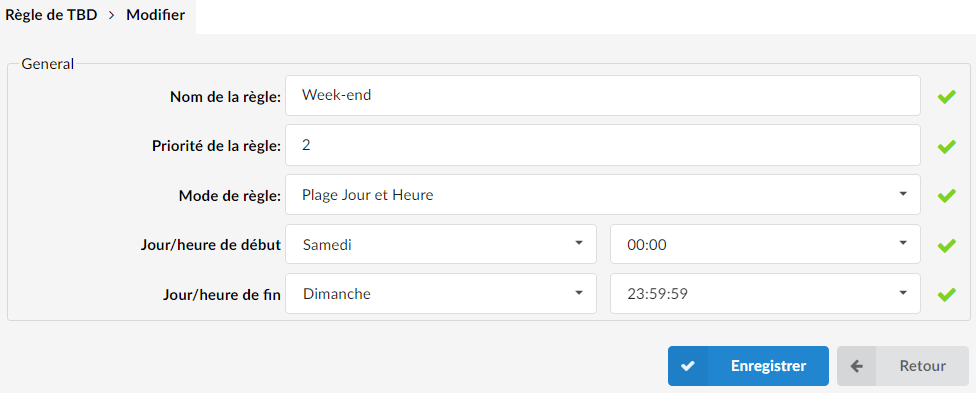
- Rule name
Rule name to be determined
- Rule priority
This field defines the priority of the TBD rule. If the dates or times of two or more rules overlap, the rule with the highest priority is taken into account.
The lower the number, the higher the priority.
- Rule mode
Depending on the rule mode, the TBD rule can be defined as:
- Day/time distribution range
- Day and time range
- Date range
Day/time distribution range
- Day range
Set the start and end days for which the time-based dialing rule applies.
- Time range
Set the start and end times for which the time-based dialing rule applies.
Day and time range
- Start day/time
Start day and time of the time range for which the TBD rule applies.
- End day/time
End day and time of the time range for which the TBD rule applies.
Date range
Choose the start and end date on the calendar in which the rule applies.