14. Supervise
The section Monitor allows the administrator to monitor all extensions, applications, trunks, conferences, and live calls in real time.
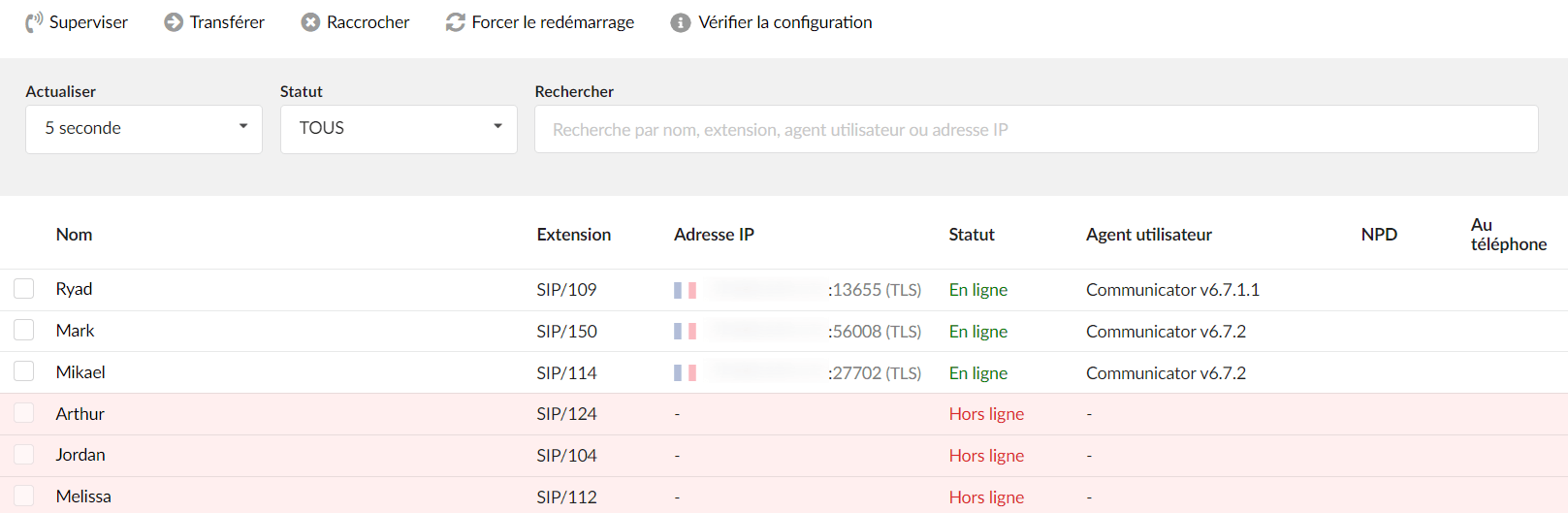
Monitored extensions are displayed in real time with the following details:
Name
Displays the extension name
Extension
Displays the protocol used by the extension and the extension number
IP address
Displays the port of the IP address to which a UAD/phone is registered and additionally indicates the transport used (TLS, UDP, TCP, WS or WSS).
NOTE:
If you click an IP address, a new window will open and display the web interface of the phone, if it is enabled.
Status
Displays the network status of the UAD/Phone.
User agent
Displays the make/version of the UAD/phone
NPD
Indicates whether the DID is applied
On the phone
Indicates whether the user is participating in a call at this moment.
If the user is on a call, the image of a headset will be displayed, otherwise this field will be empty.
TIP:
Some actions (such as call transfer, hanging up, etc.) can also be performed on active calls.
Search

Refresh
Select the time interval in seconds at which the data should be refreshed.
Status
Sort extensions by their network status (ALL, Online, Offline)
(For example, select "Online"/"Offline" to see only the online or offline extensions. Select "ALL" to display all extensions).
Search the site
Type a specific extension name, extension number, user agent, or IP address and the data will be filtered accordingly.
(For example, to refresh every ten seconds, select "10 sec" from the dropdown list).
Actions

![]()
Monitor
Select one of the active conversations
(For example, users can listen to one of the active conversations by clicking the checkbox next to the extension, and providing the number of the extension that should listen to the active conversation).
NOTE:
Users can also listen to active conversations by dialing *199 + extension number. Please note that the enhanced service must be enabled in the enhanced services of the extension that monitors the call.
Transfer
Transfer a party from the active conversation to another destination.
(For example, extensions “1000” and “1001” are in a conversation. Select an extension (e.g. ‘1000’) under ‘Channels’ and click this button. Type ‘1005’ in the pop-up window. Extension “1001” will be transferred to extension “1005”.)
Hang up
Hang up the current conversation
(For example, extensions “1000” and “1001” are in a conversation. Select an extension (for example ‘1000’) under “Channels” and click this button. The conversation between these two Extensions will be ended).
Force a restart
By selecting the extension and clicking "Force restart", the phone on which the selected extension is registered will restart.
NOTE:
This does not work for all types of phones. Some phones must be provisioned for this to work.
Apps

The Apps page displays all currently registered applications. The behavior of the page is similar to that of Monitor > Extensions, with the exception that no line is displayed for extensions that do not have applications present. This option is useful because it provides an overview of the number of Communicator editions online.
Monitored applications are displayed in real time with the following details:
Name
Displays the extension name
Extension
Displays the protocol used by the application and the extension number.
IP address
Displays the IP address and port to which a UAD/phone is registered.
Application
Displays the name and version of the application.
Edition
Displays the application edition.
On the phone
Indicates whether the user is actively on a call.
NOTE:
Some actions (such as call transfer, hanging up, etc.) can also be performed on active calls.
Search

Refresh
Select the time interval in seconds at which the data should be refreshed.
Edition
Sort extensions by their edition
Search the site
Type a specific name, extension, or application and the data will be filtered accordingly.
Actions
![]()
- Monitor
Select one of the active conversations
(For example, users can listen to one of the active conversations by clicking the checkbox next to the extension, and providing the number of the extension that should listen to the active conversation).
NOTE:
Users can also listen to active conversations by dialing *199 + extension number. Please note that the enhanced service must be enabled in the enhanced services of the extension that monitors the call.
Transfer
Transfer a party from the active conversation to another destination.
(For example, extensions “1000” and “1001” are in a conversation. Select an extension (e.g. ‘1000’) under ‘Channels’ and click this button. Type ‘1005’ in the pop-up window. Extension “1001” will be transferred to extension “1005”.)
Hang up
Hang up the current conversation
(For example, extensions “1000” and “1001” are in a conversation. Select an extension (for example ‘1000’) under “Channels” and click this button. The conversation between these two Extensions will be ended).
Trunk
The monitored SIP trunks are displayed in real time with the following details:
SIP account:
Displays the name of the Trunk
IP address :
Displays the provider's IP address
Status:
Displays the Trunk status (“Online”/”Offline”)
NOTE:
Please set the field Qualification in the trunk settingsin order to see its status.
Search

Refresh
Select the time interval in seconds at which the data should be refreshed.
Protocol
Select a Trunk from the drop-down list based on the protocol.
Status
Sort Trunks by their network status (ALL, Online, Offline)
Conferences
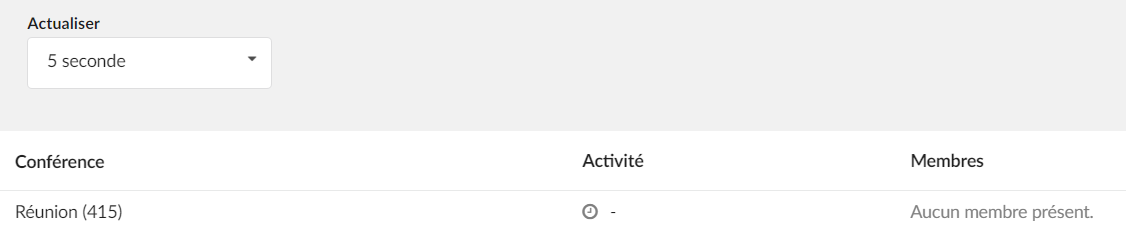
Supervised conferences are displayed in real time with the following details:
Conference
Displays the name and number of the conference
Activity
Displays the time during which the conference was active.
Members
Displays the list of participants in a conference
Search
Refresh
Select the time interval in seconds at which the data should be refreshed.
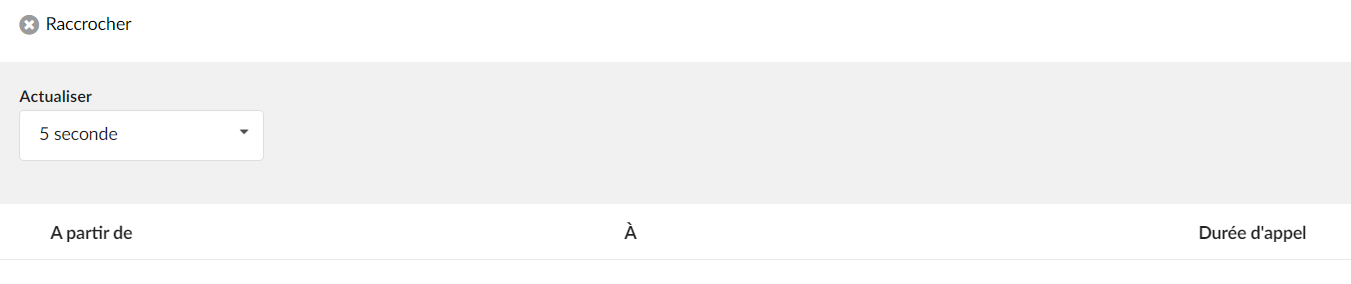
Live calls

Supervised live calls are displayed in real time with the following details:
Starting from
Displays the caller's extension name (or CallerID) and their extension number.
To
Displays the call recipient's extension name (or CallerID) and the extension number.
Call duration
Displays the call duration
Actions
Hang up
Hang up the current conversation
(For example, extensions “1000” and “1001” are in a conversation. Select an extension (for example ‘1000’) under ‘Channels’ and click this button. The conversation between these two Extensions will be ended).
Settings
Here the user can modify the monitoring settings. The alert system monitors all SIP/IAX peers (Extensions and Trunks) on a PBXware system. If this peer is unreachable, an email notification is sent to the administrator(s).
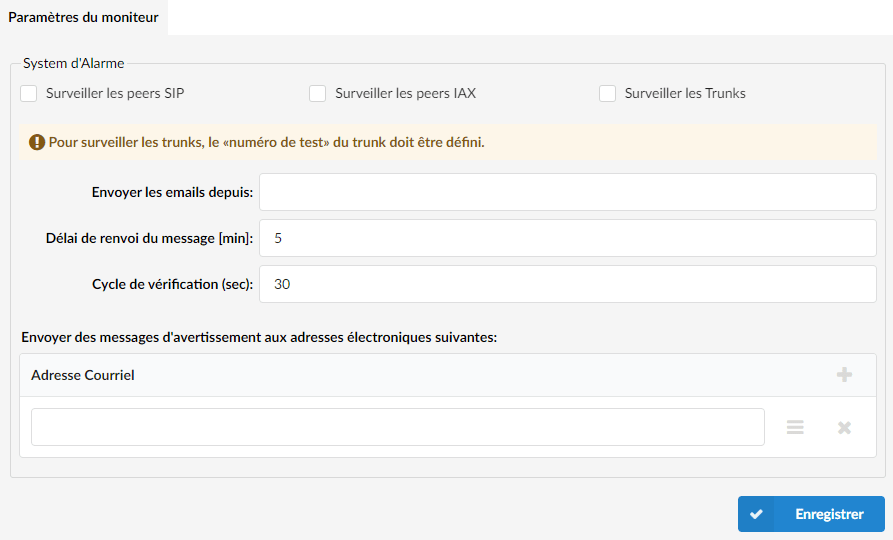
Monitor SIP peers
The PBXware alerting system needs to know which of its peers should be monitored, and when this option is checked, the system will monitor the SIP extensions.
(For example, click the checkbox to monitor SIP extensions).
Monitor IAX peers
If this option is checked, the system will supervise the IAX extensions.
(For example, click the checkbox to monitor IAX extensions).
Monitor Trunks
When this option is checked, the system will monitor the Trunks.
(For example, check the box to monitor Trunks).
NOTE:
When monitoring Trunks, PBXware will try to dial a test number provided in the Test Number field under the Trunk. If the received signal does not match the 'ANSWER', 'BUSY', 'CANCEL', or 'NO ANSWER' response, the test call is considered non-functional and the alert system sends a notification email. For example, a number that can be used in this case is an automated time service that many telephone service providers offer for free.
Send emails from:
In order to customize the email address from which the notification email will appear to be sent, set the preferred email address in this field. When the administrator receives a warning email, it will appear as having been sent from the email address indicated here.
NOTE:
This email address does not necessarily have to be a valid email account, but if the SMTP server used to send emails from PBXware does not support it, the email will be sent from the email address associated with the account used for registering PBXware on the server. In some cases, the server will not even send emails if the "from:" address is set to a nonexistent value.
Message resend delay [min]:
To prevent PBXware from sending too many notification emails for each unavailable extension, a notification sending delay can be set. Once a notification email is sent and another extension becomes unavailable, the notification about this latter unavailable extension will only be sent after the given delay.
Check cycle (sec):
Sets the number of seconds that elapse between checks
Send warning messages to the following email addresses:
Warning messages can be sent to as many email addresses as needed. To add a new destination, click the "Add" button and enter the email address in the appropriate field.
NOTE:
Once all the steps are completed, users must restart PBXware.